SAP Workflow Wizard
A guided, four-step wizard designed specifically for creating SAP data transformation workflows with minimal configuration.
Overview
The SAP Workflow Wizard simplifies the process of creating data workflows for SAP systems. The SAP Wizard:
-
Pre-selects SAP tables based on your chosen module
-
Configures relationships automatically using SAP’s implicit foreign keys
-
Applies intelligent masking with SAP-specific transformation rules
-
Handles time slicing for date-based data filtering
Accessing the Wizard
-
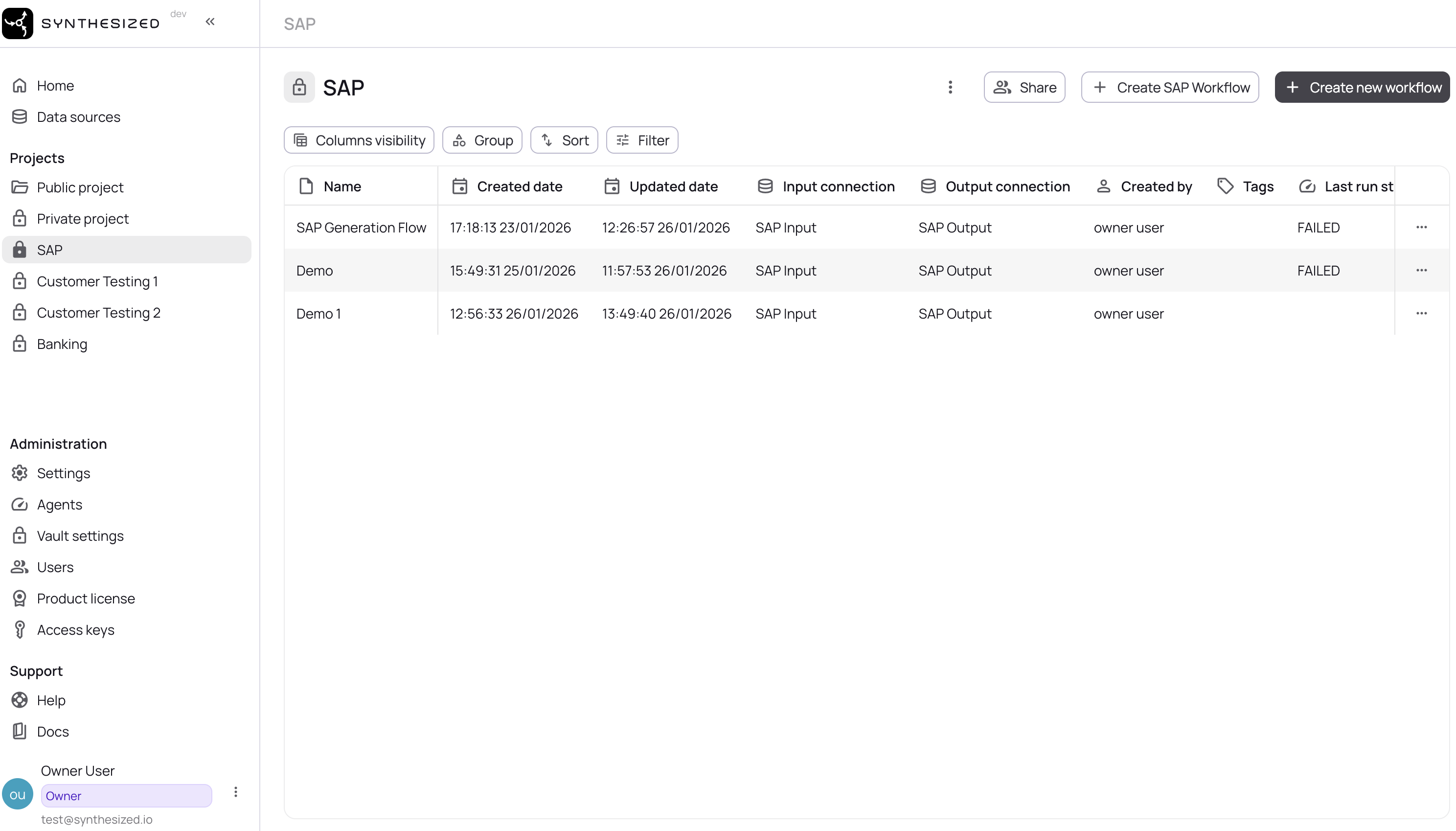
Navigate to Workflows in the main menu
-
Click Create SAP Workflow
-
The wizard opens with Step 1: Define
|
The SAP Workflow option is only visible when the SAP UI feature is enabled. Contact your administrator if you don’t see this option. |
Wizard Steps
Step 1: Define
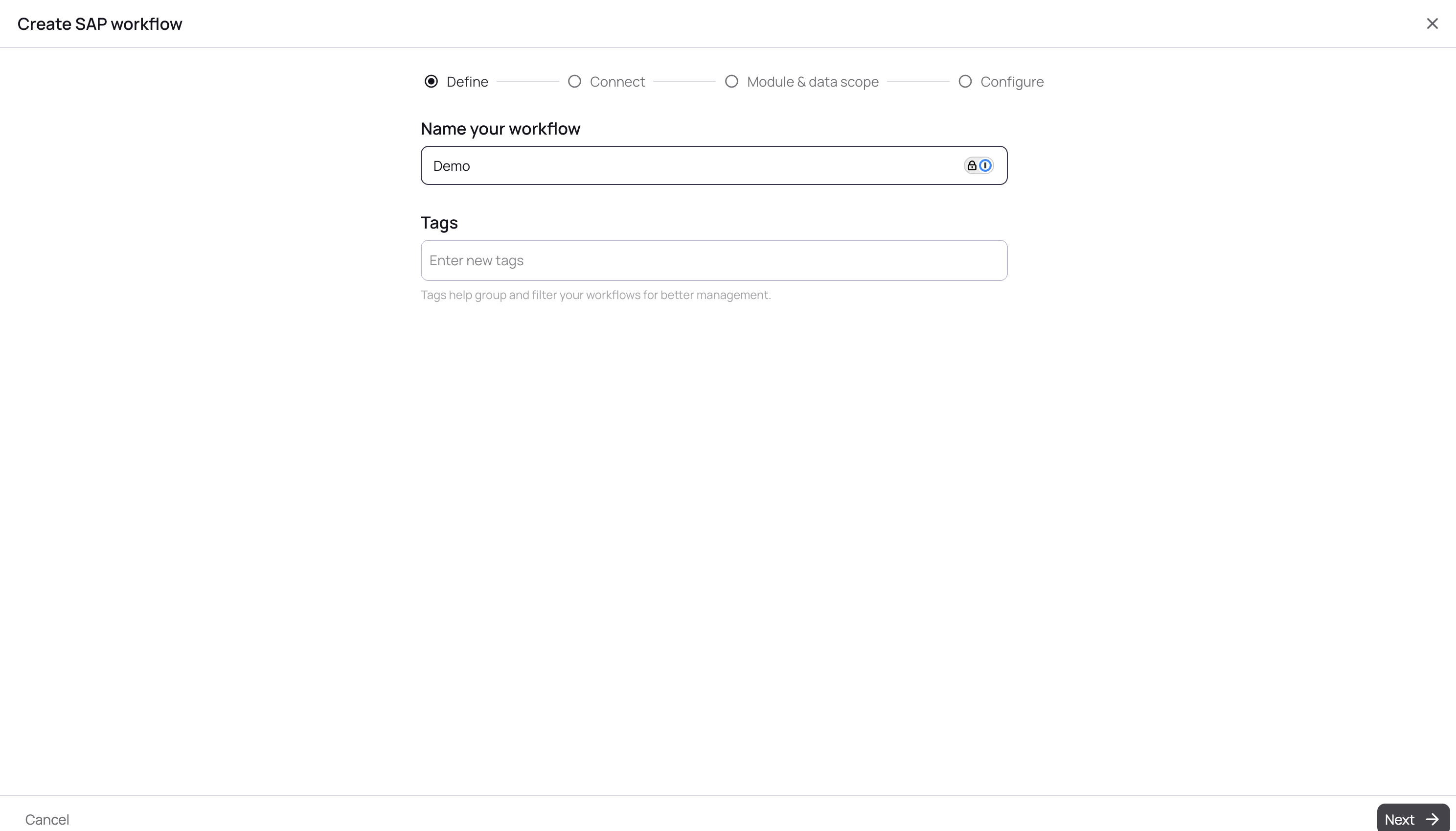
Define the basic workflow properties.
| Field | Description |
|---|---|
Workflow Name |
A descriptive name for your workflow (e.g., "MM Test Data - Q1 2024") |
Tags |
Optional tags for organization and filtering |
Step 2: Connect
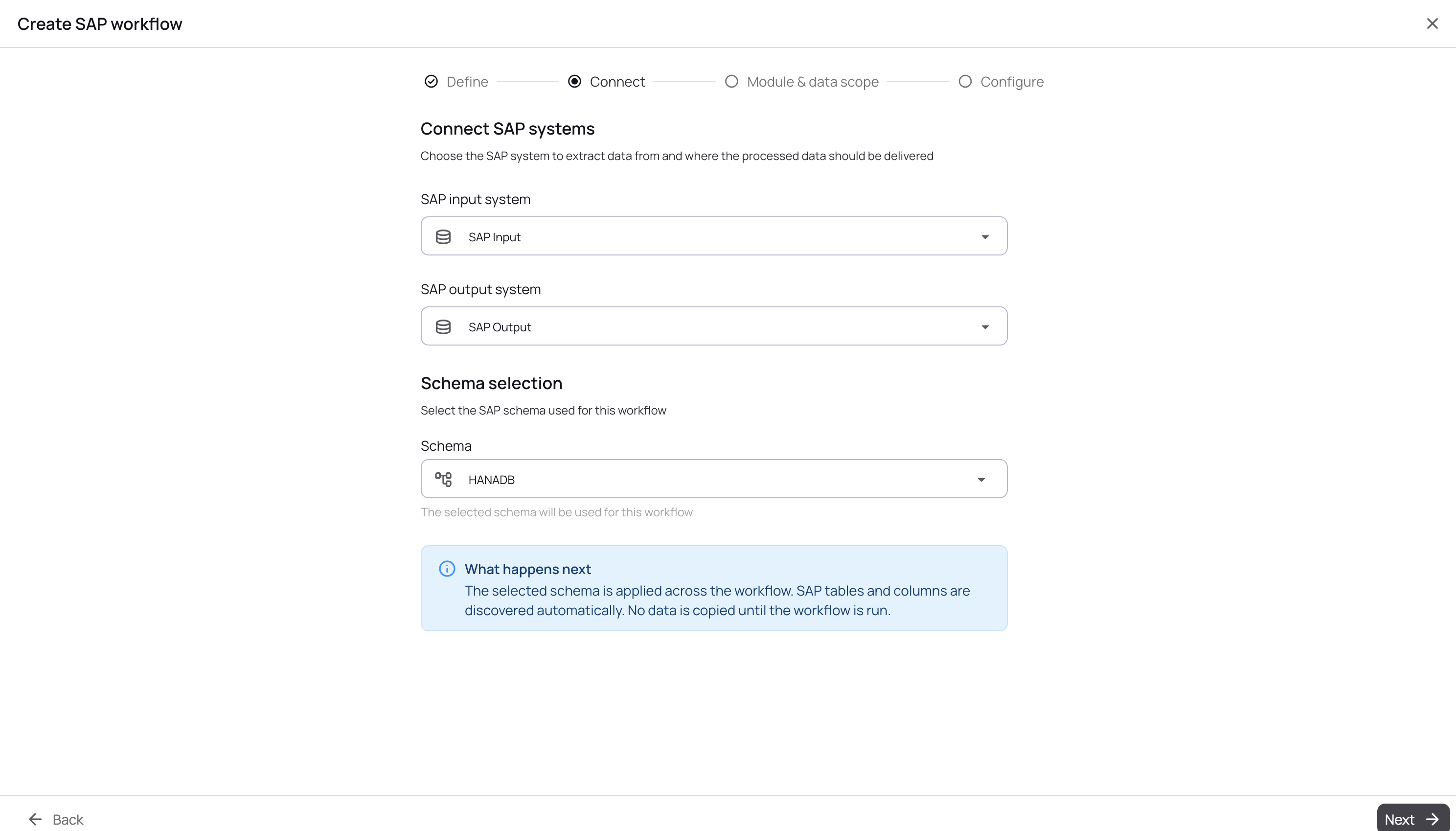
Configure the source and target SAP HANA connections.
Connection Options
| Field | Description |
|---|---|
Input Connection |
The source SAP HANA database (production or source system) |
Output Connection |
The target SAP HANA database (test or development system) |
Input Schema |
The schema containing source SAP tables |
Output Schema |
The schema where transformed data will be written |
Same-System Deployments
When the input and output connections are the same (same SAP system), the wizard:
-
Enables dual schema mode
-
Allows selecting different input/output schemas within the same database
-
Automatically configures schema mapping in the generated workflow
# Generated configuration for same-system deployment
metadata:
  schemas:
    - input: SAP_PROD
      output: SAP_TEST
Step 3: Module & Data Scope
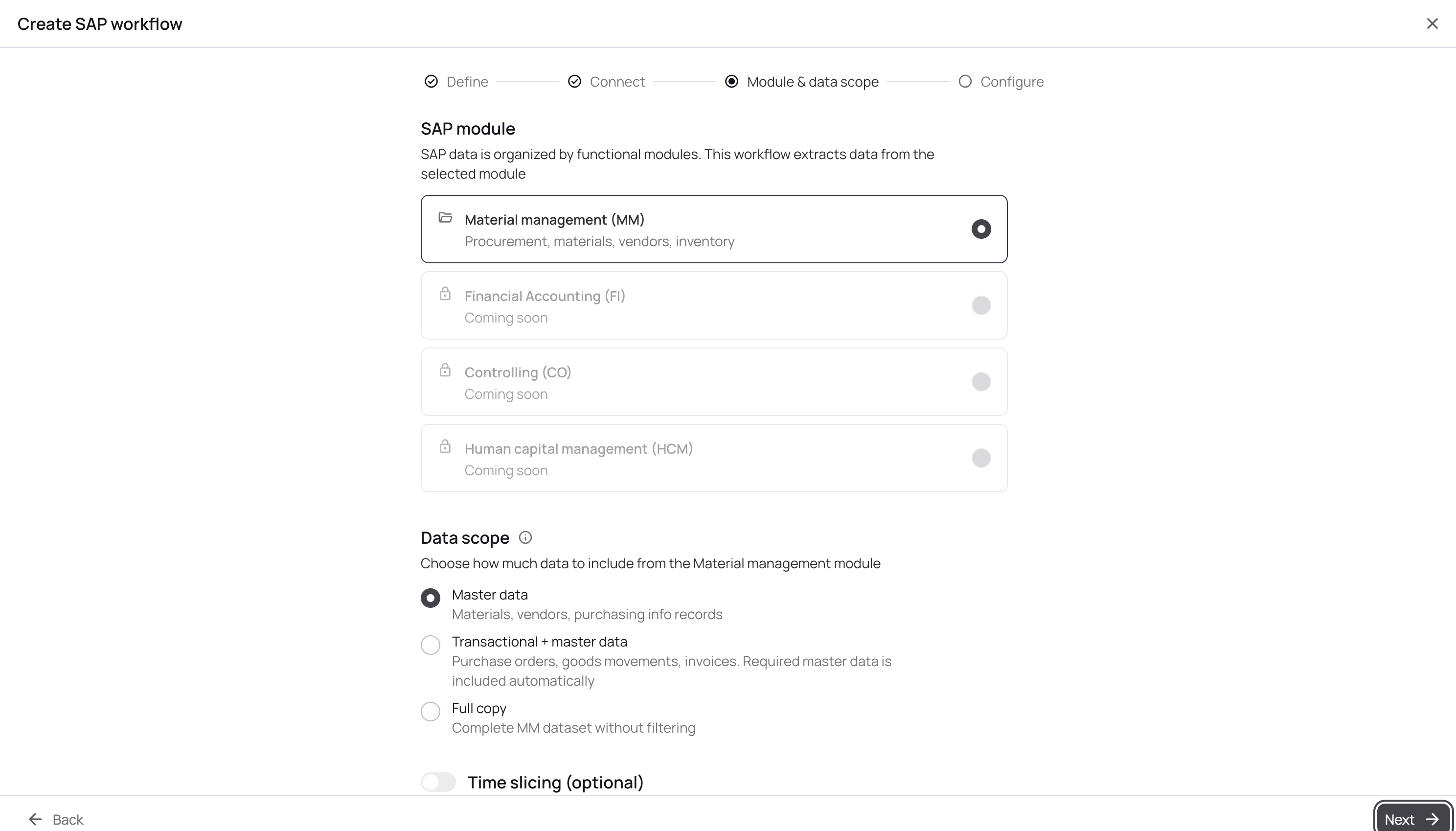
Select the SAP module and define the data scope.
Module Selection
Choose the SAP module to work with:
| Module | Tables Included | Configuration |
|---|---|---|
MM (Material Management) |
MARA, MAKT, MARC, MARD, MBEW, MARM, MVKE, MKPF, MSEG |
Guided Wizard |
FI (Financial Accounting) |
BKPF, BSEG, SKA1, SKB1, LFA1, KNA1 |
YAML Config |
CO (Controlling) |
CSKS, CSKA, CEPC, COSP |
YAML Config |
HCM (Human Capital Management) |
PA0001, PA0002, PA0008, HRP1000 |
YAML Config |
| All modules can be configured via YAML. The MM module additionally offers guided wizard support. |
Data Scope Options
| Scope | Description |
|---|---|
Master Data Only |
Include only master data tables (MARA, MAKT, MARC, etc.). Smaller dataset, ideal for reference data. |
Transactional + Master |
Include both transactional tables (MKPF, MSEG) and required master data. Automatically includes master records referenced by transactions. |
Full Copy |
All master data and transactional tables. Largest dataset, includes all historical data. Can be combined with time slicing when needed. |
Time Slicing
When Transactional + Master is selected, you can filter by date:
| Period | Filter Behavior |
|---|---|
No time slicing |
Include all records regardless of date |
Last month |
Records from the past 30 days |
Last 3 months |
Records from the past 90 days |
Last 6 months |
Records from the past 180 days |
Last 9 months |
Records from the past 270 days |
Last 12 months |
Records from the past 365 days |
Step 4: Configure
Select the data protection level.
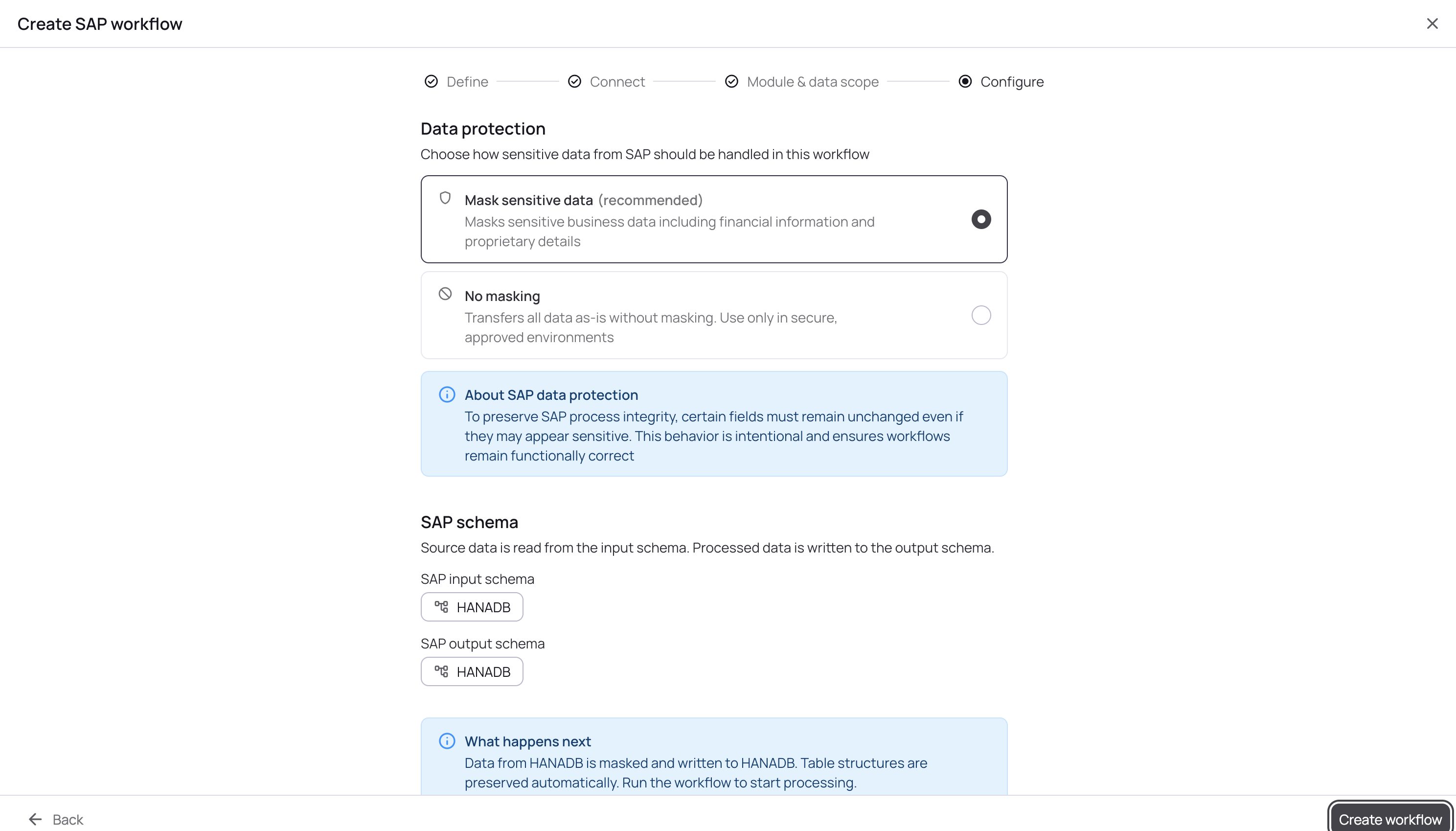
Data Protection Options
| Option | Description |
|---|---|
Mask Sensitive Data (Recommended) |
Apply pre-configured masking rules to sensitive fields while preserving SAP process integrity. Manufacturer numbers, pricing, quantities are transformed. |
No Protection |
All fields pass through unchanged. Use only in secure, approved environments where data protection is not required. |
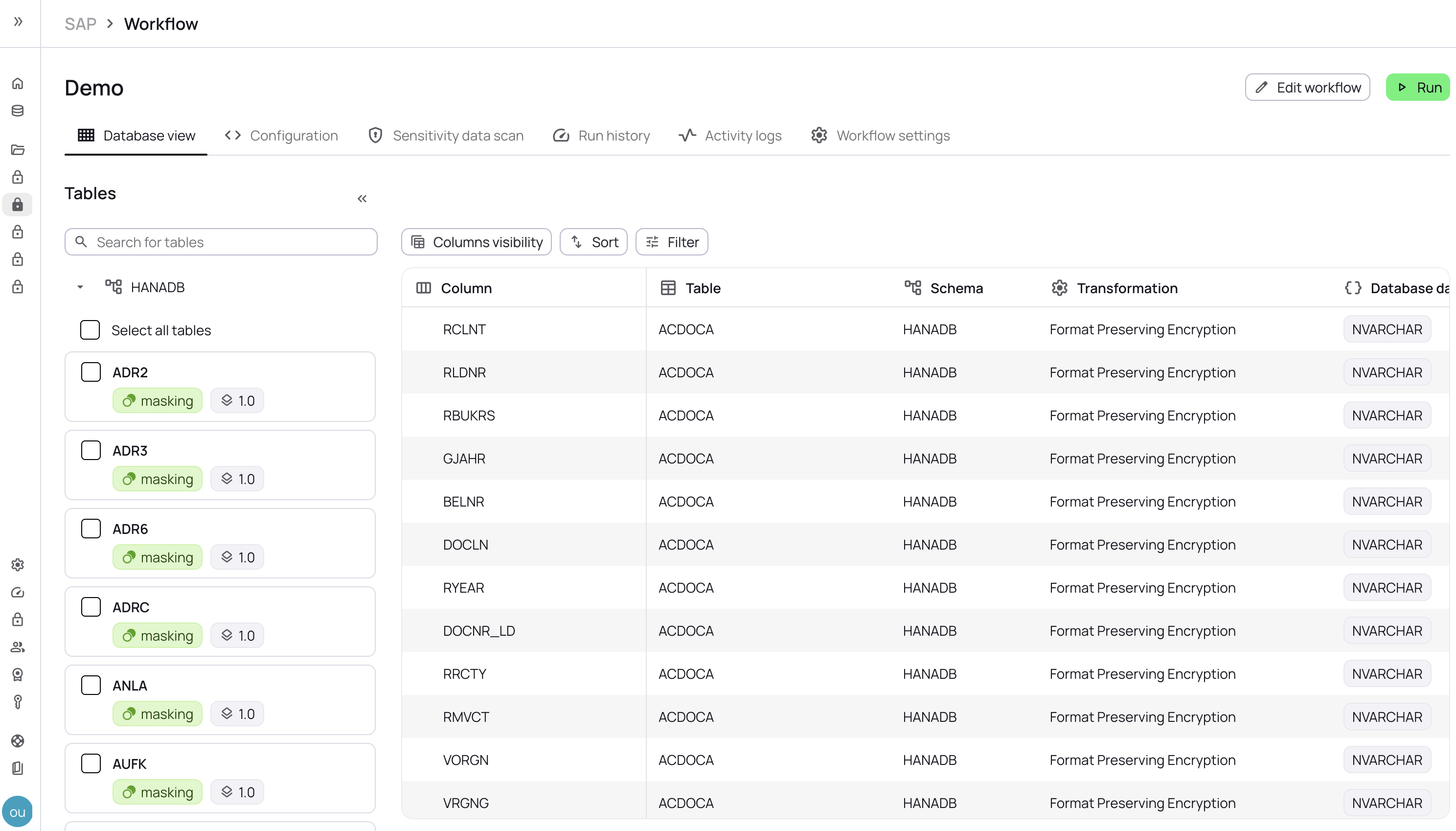
Generated Configuration - DB View
After completing the wizard, a UI friendly database view is automatically presented with all the necessary transformers applied:
Generated Configuration - YAML
After completing the wizard, a YAML configuration is generated automatically:
mode: MASKING
target_ratio: 1.0
safety_mode: RELAXED
use_working_directory: true
cycle_resolution_strategy: FAIL
schema_creation_mode: DO_NOT_CREATE
table_truncation_mode: TRUNCATE
use_text_column_heuristics: false

tables:
  - table_name_with_schema: "SCHEMA.MARA"
    filter: "ERSDA >= ADD_MONTHS(CURRENT_DATE, -3)"
    transformations:
      - columns: ["MANDT"]
        params:
          type: passthrough
      - columns: ["MATNR"]
        params:
          type: passthrough
      # ... additional transformations
Running the Workflow
After creating the workflow:
-
Review the generated configuration
-
Click Run Workflow to execute
-
Monitor progress in the workflow details page
-
View results and any errors in the execution log
Best Practices
Start with Master Data
For initial testing, start with Master Data Only scope:
-
Smaller dataset for faster iteration
-
Validates connection and permissions
-
Confirms table structure compatibility
Troubleshooting
Wizard Not Available
If you don’t see the "Create SAP Workflow" option:
-
Ensure the SAP UI feature is enabled (
UI_SAP_UI=true) -
Contact your administrator to enable the feature