Connect a Data Source
A data source tells the platform how to reach a database or file store. A workflow reads from an input data source and writes to an output data source, so you need at least one of each.
Before you start
-
A database user for the platform on each database, with the database permissions it needs: read access for an input, write access for an output.
-
The JDBC URL of the database. See the JDBC URL examples for each database type.
-
Network access from the platform, or from the worker that will run the workflow, to the database.
Create the data source
-
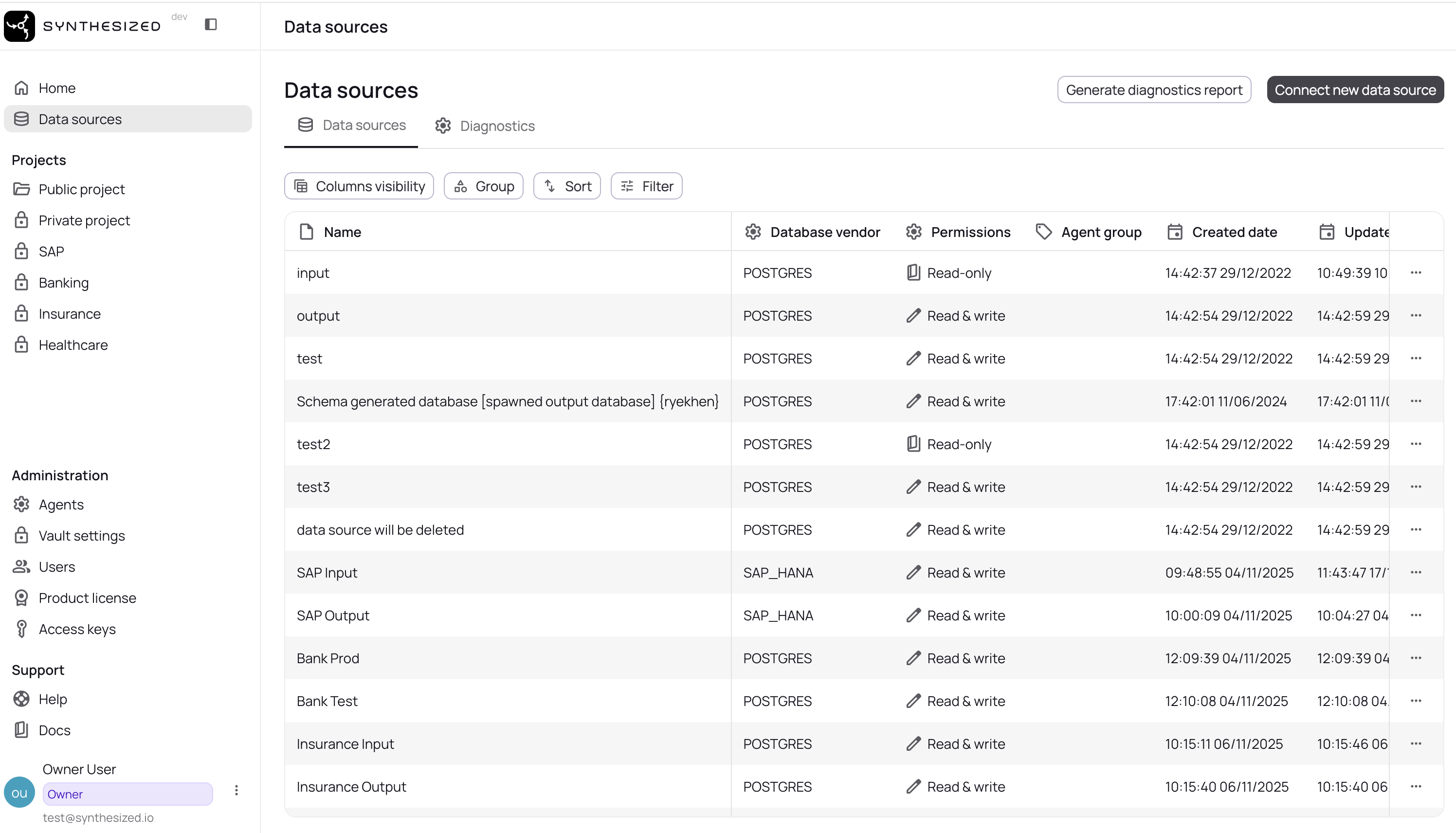
Click Data sources in the left sidebar, then Connect new data source.
-
Fill in the form:
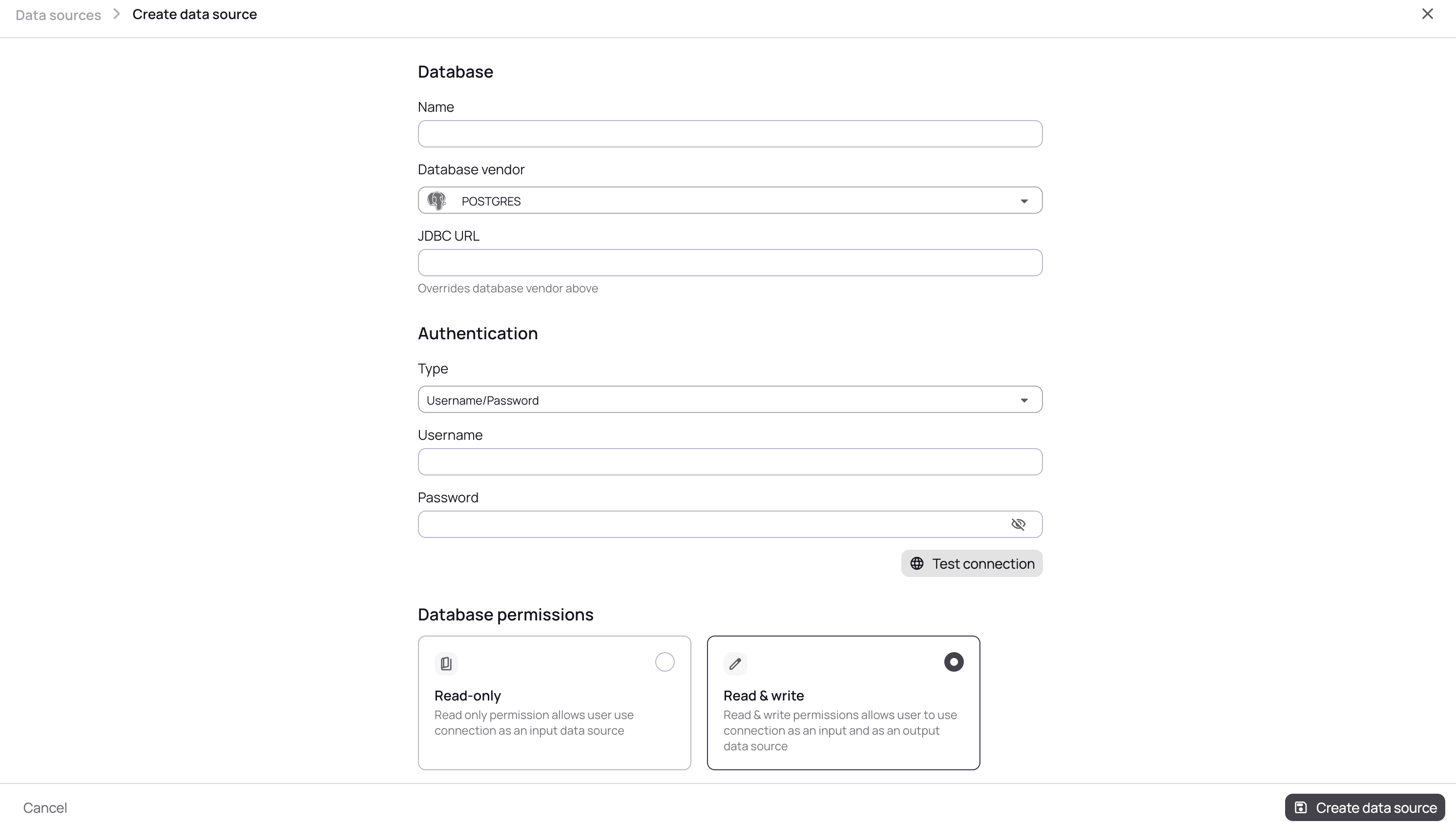
Field What to enter Name
A name people will recognise when they choose data sources for a workflow.
Slug
A stable, unique identifier that configurations use to refer to the data source, for example in cross-system links.
Database vendor
The database type. See the supported types below.
JDBC URL
The connection string. It overrides the vendor chosen above. See the examples.
Type (Authentication)
Usually Username/Password. See Connect without stored credentials for the other option.
Username, Password
The database user you created for the platform.
Database permissions
Read-only or Read & write: whether workflows can write to this data source. See Read-only or Read & write.
Supported Data Sources
Synthesized easily connects to a variety of data sources.
POSTGRES ORACLE MYSQL SQLITE MSSQL Snowflake DB2 LUW CSV XML SAP HANA
-
Click Test connection to check the platform can reach the database.
-
Click Create data source.
-
Add it to the project where your workflows are: in the project, open the three-dot menu and select Manage data sources. A workflow can only use the data sources added to its project. See Managing a project’s data sources.
Read-only or Read & write
The form’s Database permissions setting decides how workflows can use the data source. It is a platform setting, separate from the grants of the database user: set both, and give a Read & write data source a user with the write grants.
| Setting | As an input | As an output |
|---|---|---|
Read-only |
|
|
Read & write |
|
|


Use Read-only for production sources, so no workflow can write to them by mistake.
A data source has no Private setting. Who can see it depends on its projects: you see a data source if you created it, or if it’s in a project you belong to.
Connect without stored credentials
A Db2, MySQL or PostgreSQL data source can be saved with the authentication type No authentication. Use it when the driver gets its authentication details from properties in the JDBC URL or from the worker’s environment, instead of from a stored username and password.
This option doesn’t turn off authentication on the database: the driver and the worker must still be set up for the method you use.
-
Open the form for a new or existing data source.
-
Under Authentication, set Type to No authentication.
-
Add the connection properties your authentication method needs to the JDBC URL.
-
Set up any authentication files and settings it needs on the worker that connects to this data source.
-
Save the data source.

