Editing a Workflow Configuration
Edit a workflow’s configuration file, save your changes, and recover safely if a save fails.
Overview
A workflow is driven by a configuration file that defines its tables and transformation rules. The Workflow Configuration screen lets you edit this file, save it, and - for workflows built on an XML schema - preview the generated XML before saving.
If a save fails, your unsaved edits are kept as a local draft and offered back to you the next time you open the same workflow, so you never lose work silently.
Prerequisites
-
You have permission to edit workflows.
-
The workflow already has a configuration file (created when the workflow was set up).
Steps
-
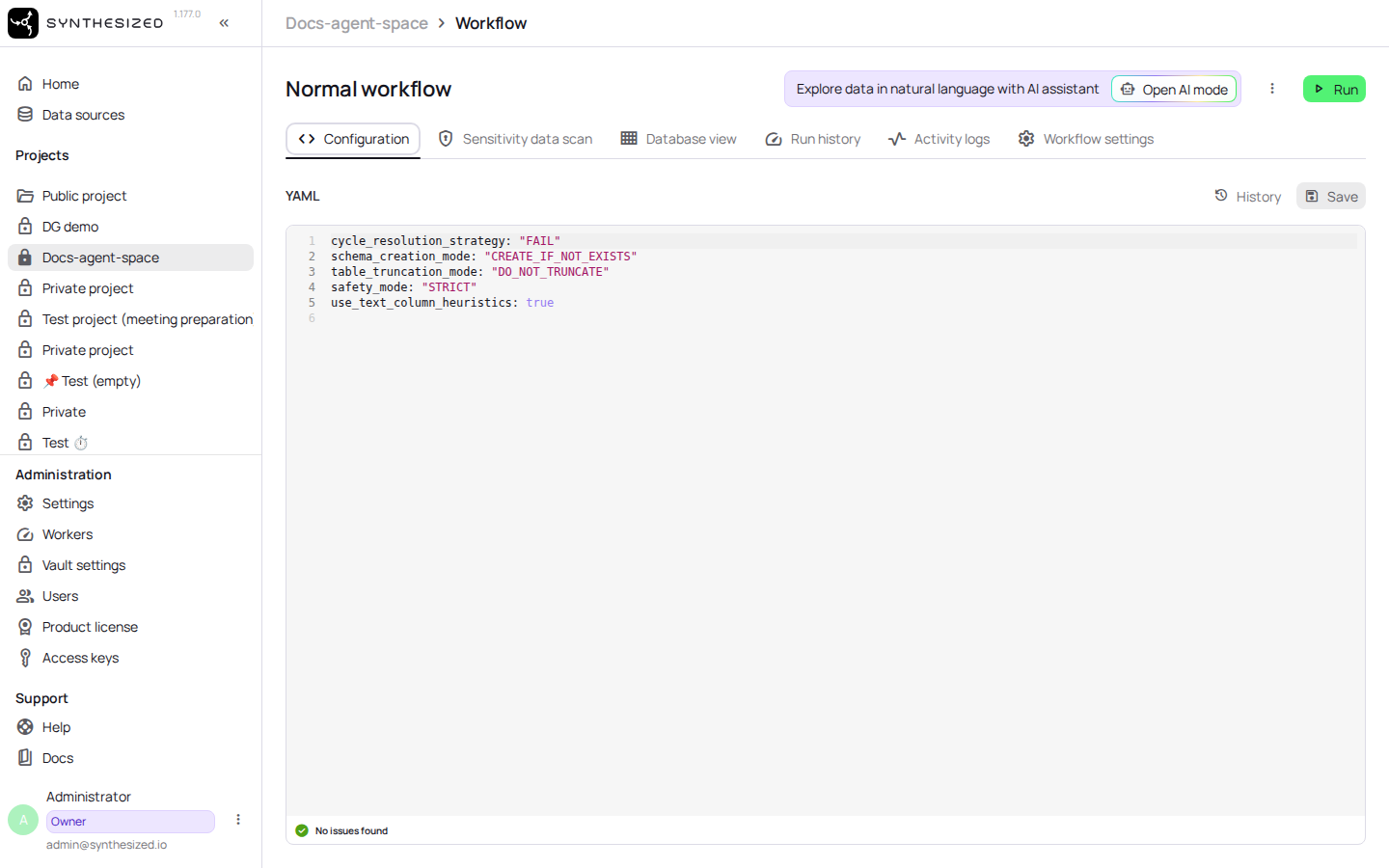
Open the project and select the workflow you want to configure. This opens the workflow’s configuration editor.
-
Edit the configuration in the editor pane.
If a notice reports a draft recovered from an earlier failed save, review the restored text before you continue - discard it if you don’t want to keep it.
-
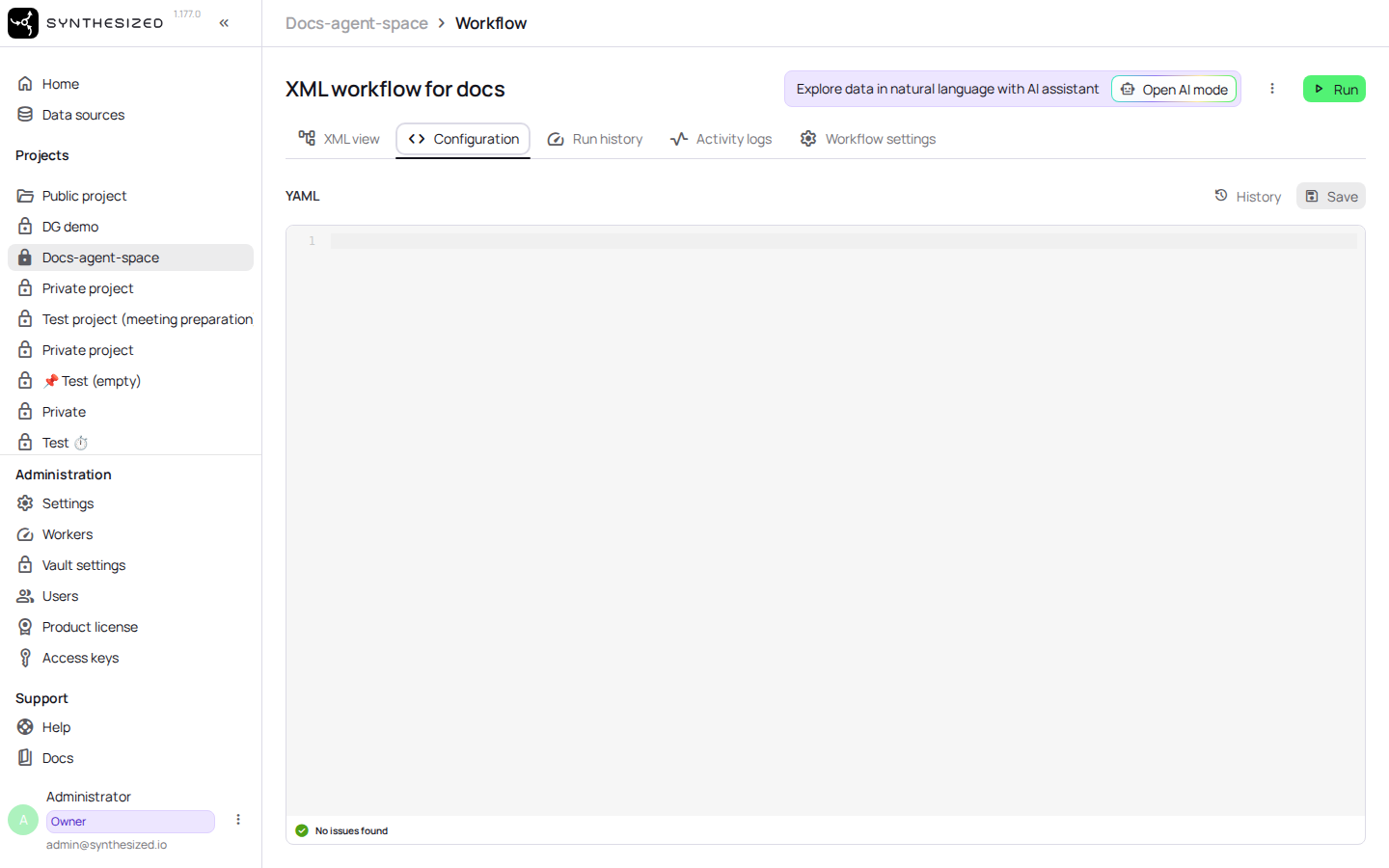
If the workflow uses an XML schema, open the preview to check the generated XML before saving.
-
Click Save.
Example
A minimal configuration looks like this - adapt it with the tables and rules your workflow needs:
tables: []For the full set of configuration keys, see Workflow Configuration Reference.
Confirm success
After a successful save:
-
The toolbar’s Save control no longer shows unsaved changes.
-
The workflow’s last-saved time updates to the time of your save.
-
Reopening the workflow shows your saved configuration, with no draft-recovery notice.
Next steps
-
To review, compare, or restore earlier configurations, see Version History.
-
If you prefer a visual editor instead of editing YAML directly, see Adding Tables to a Workflow from the Database View.