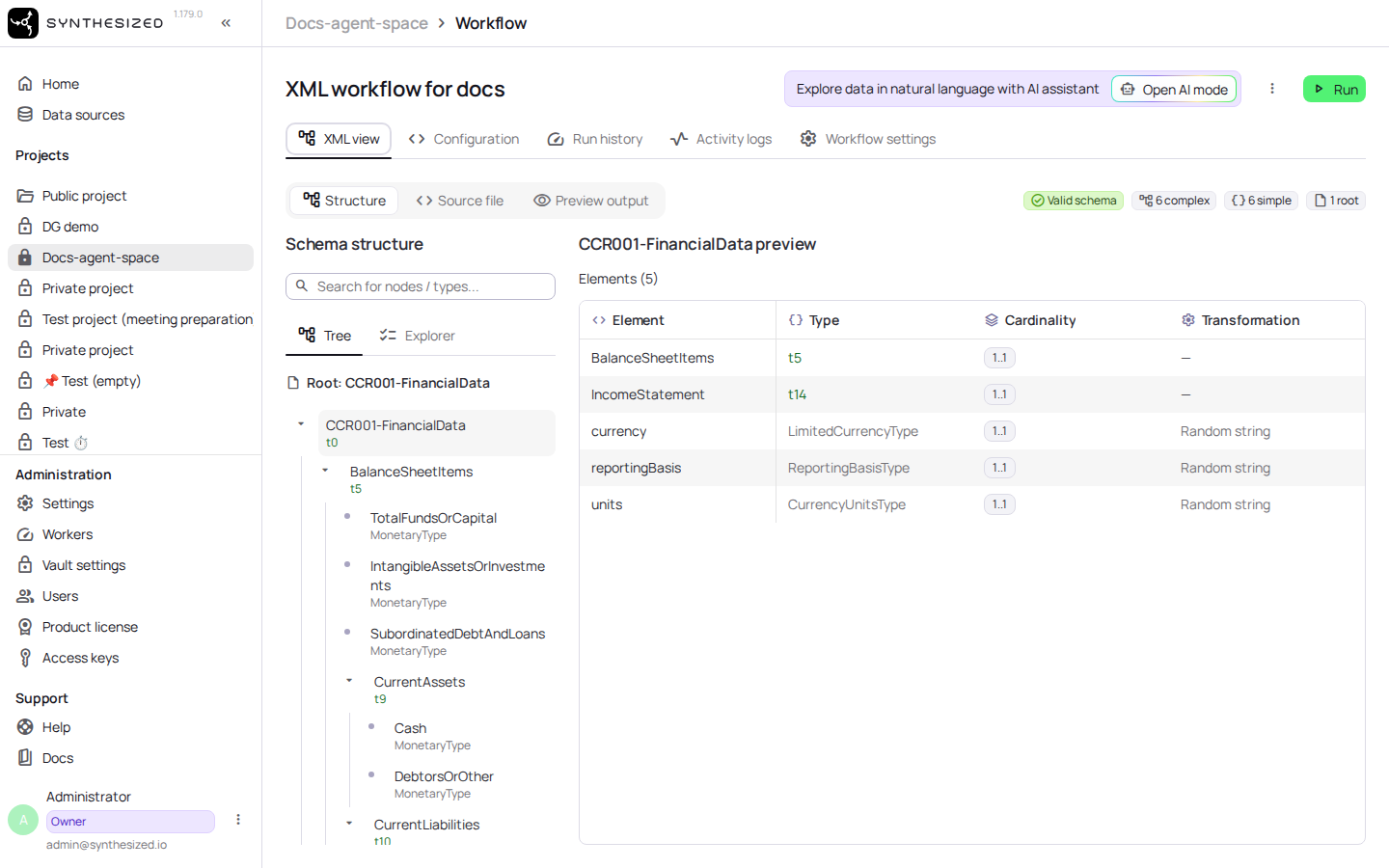
Viewing the XML Schema
View the structure of an XML data source so you can target the right paths when customising XML generation.
Overview
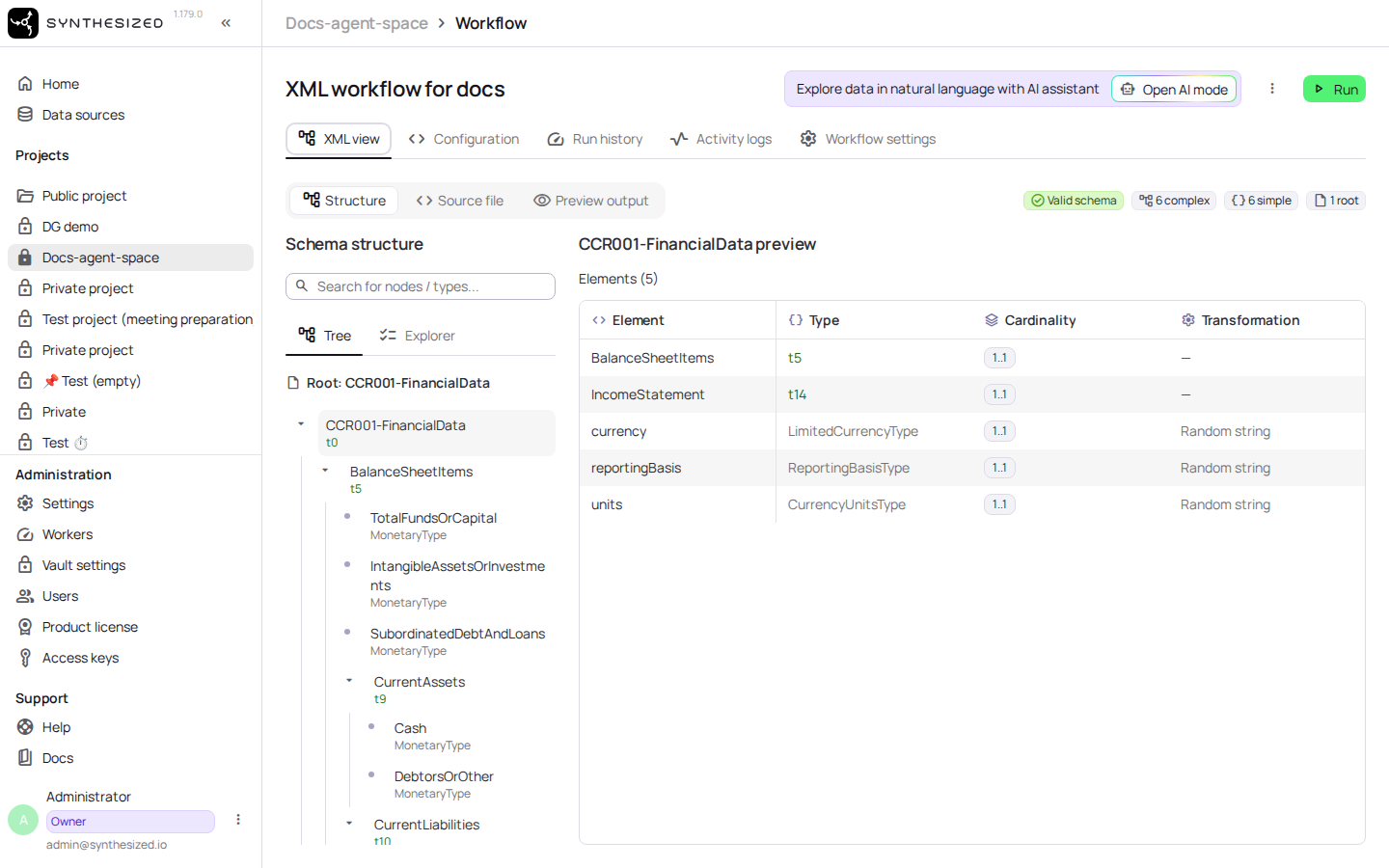
Before you write YAML customizations for XML generation (see Generating XML Files), you need to know the element and attribute paths in your source file. The schema view shows the detected structure of an XML data source, so you can copy the paths straight into your configuration instead of guessing them from the raw file.
Prerequisites
-
An XML data source already added to your project.
-
A workflow connected to that XML data source.
Steps
-
Open the project containing the XML data source.
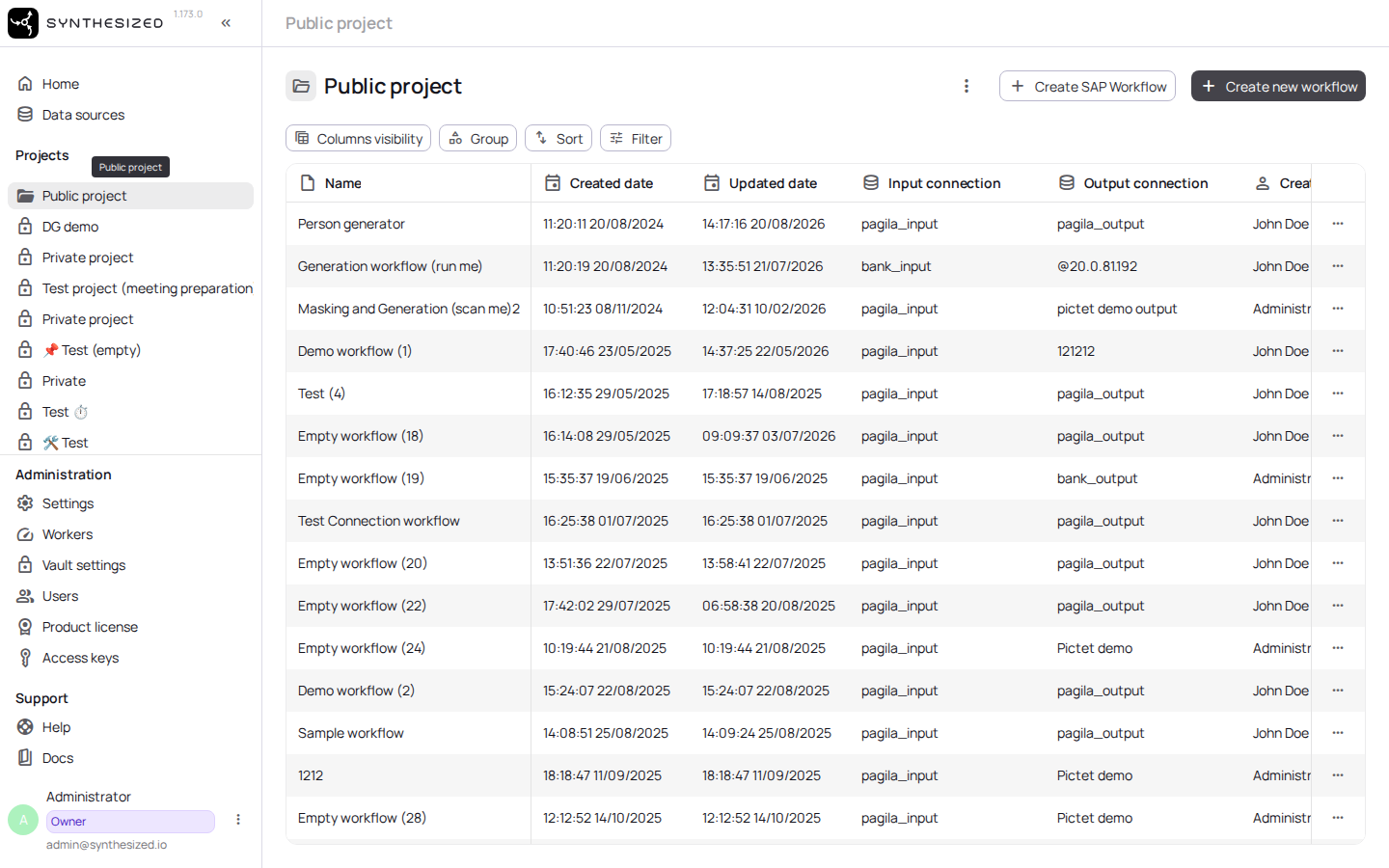
-
Open a workflow connected to the XML data source.
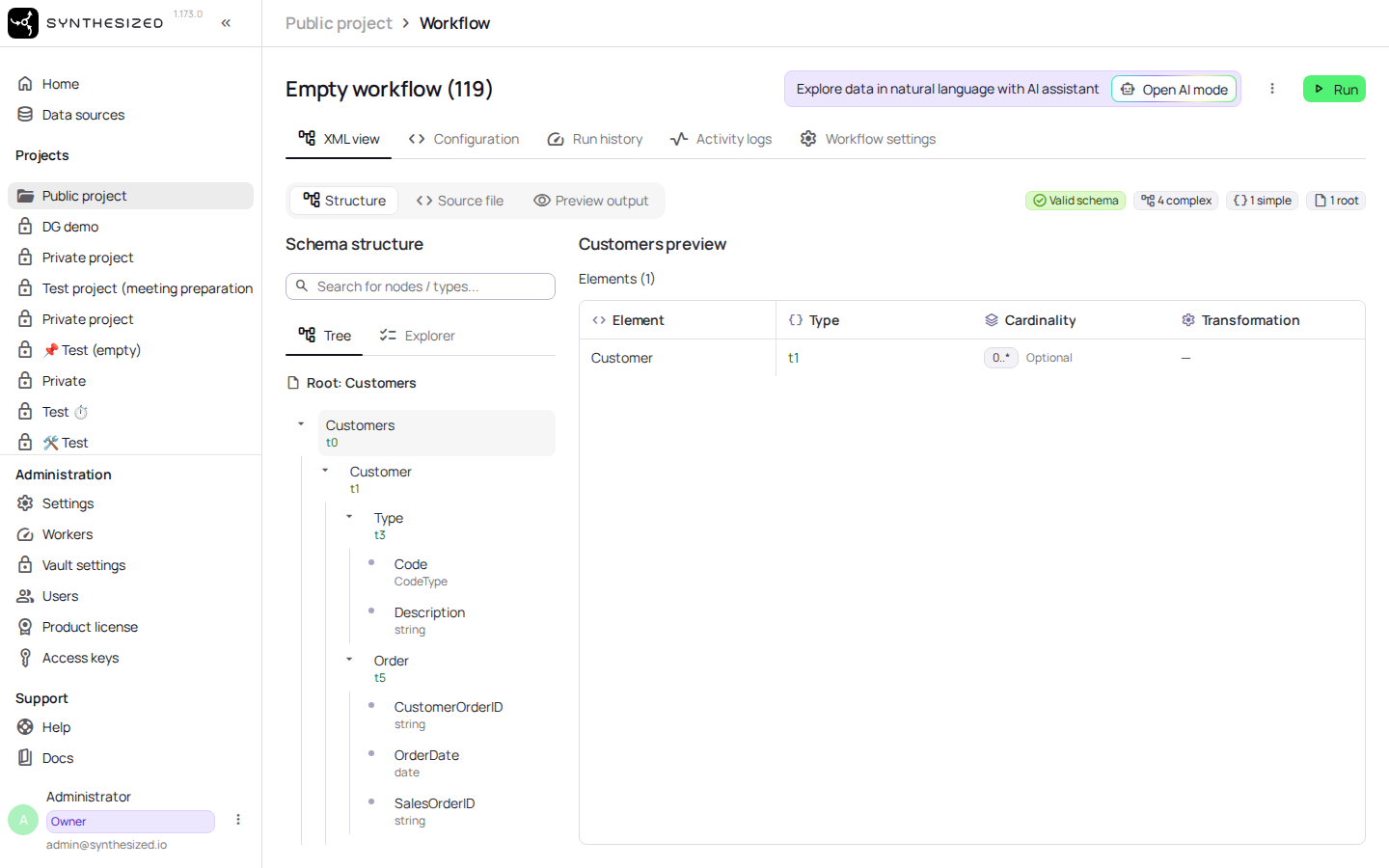
-
Click the source file to open it.
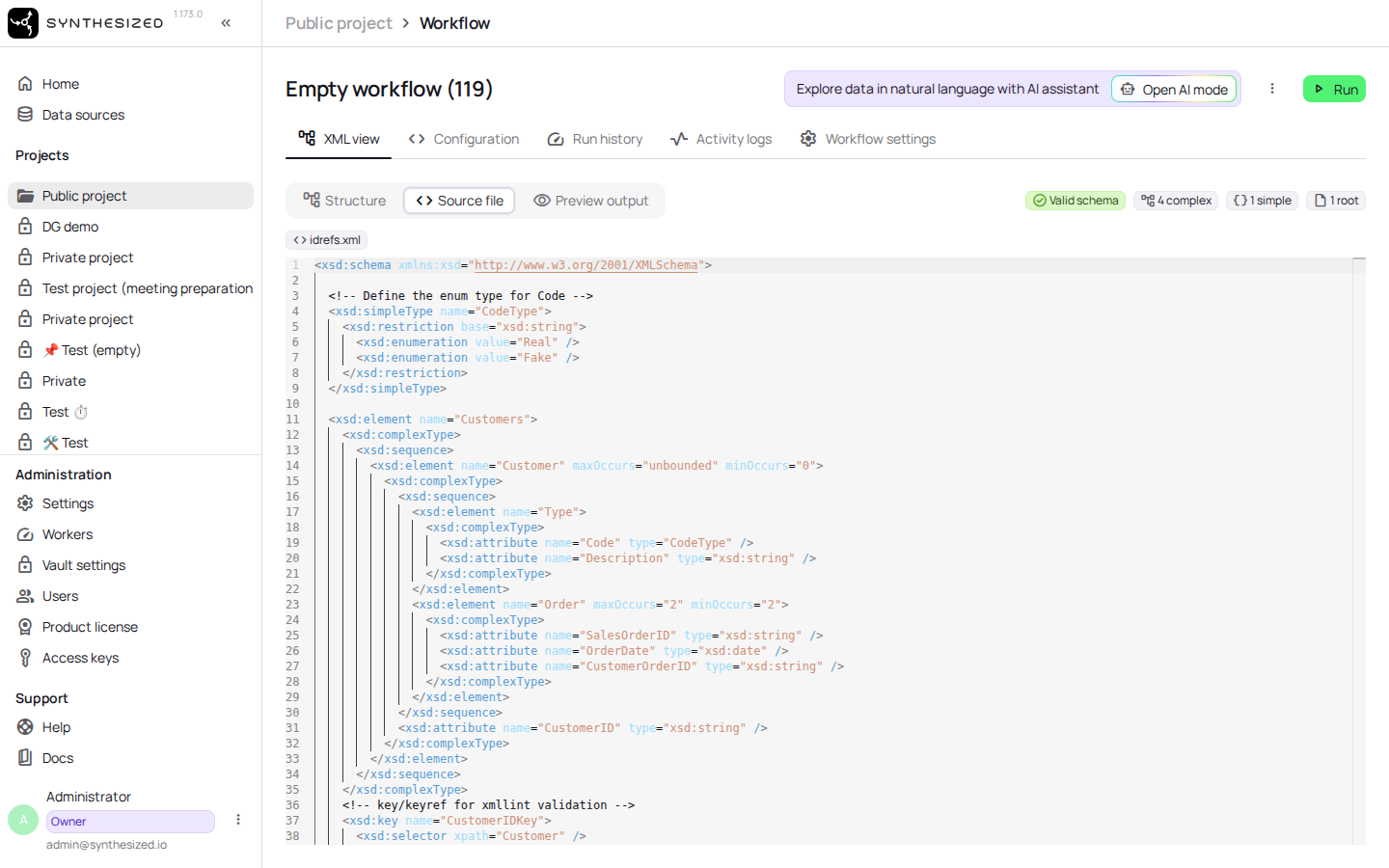
-
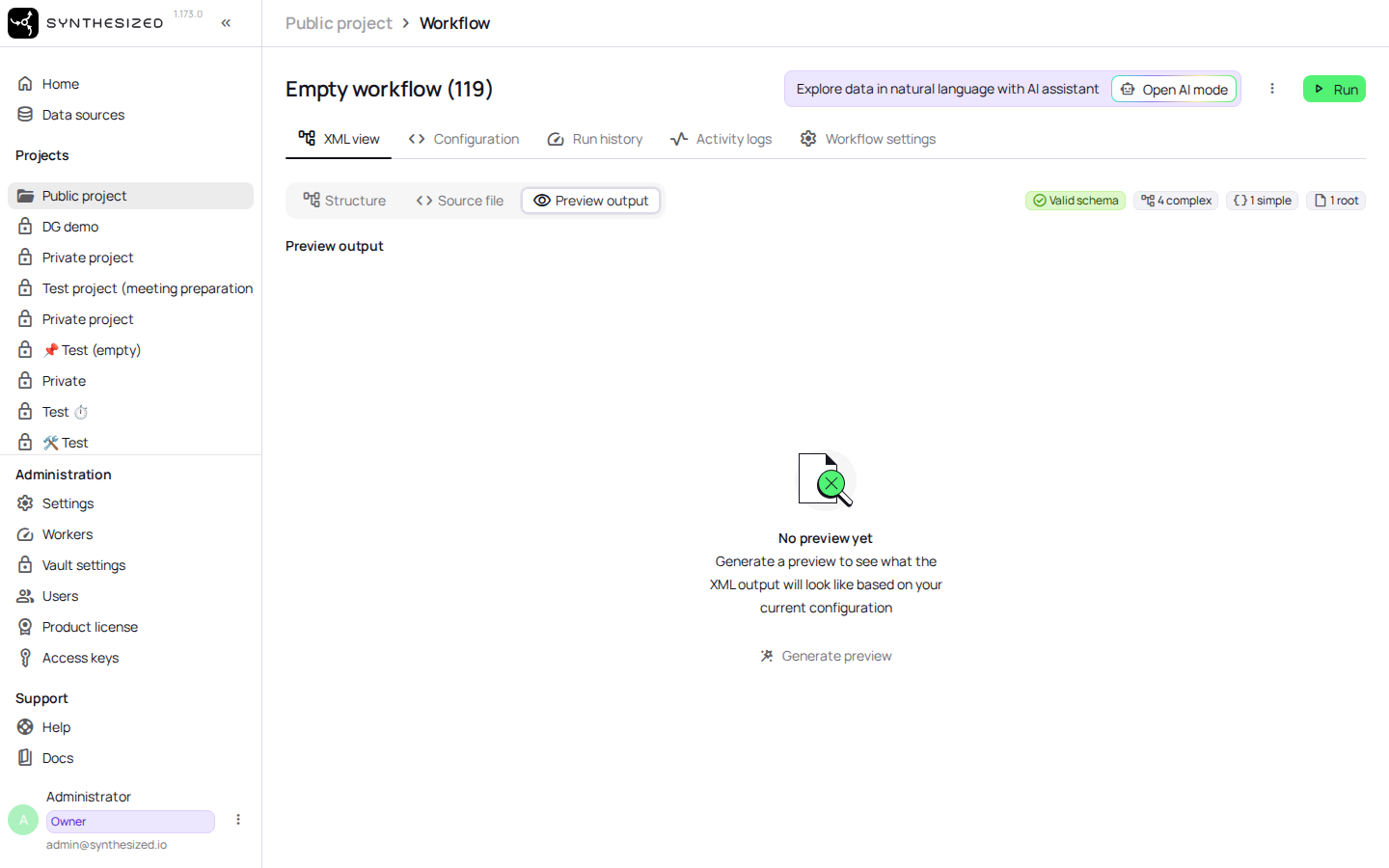
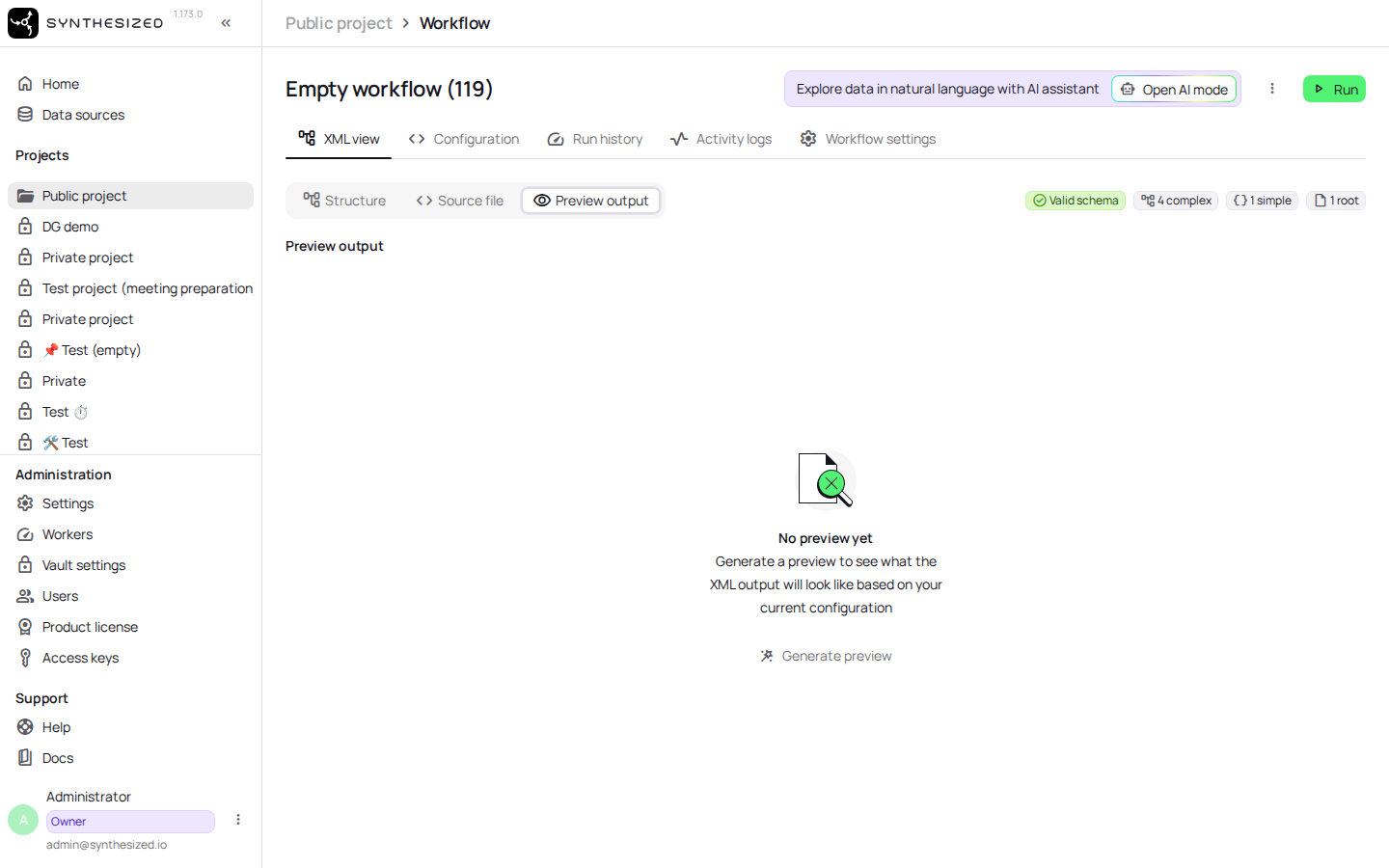
Open the Generate Preview tab.
-
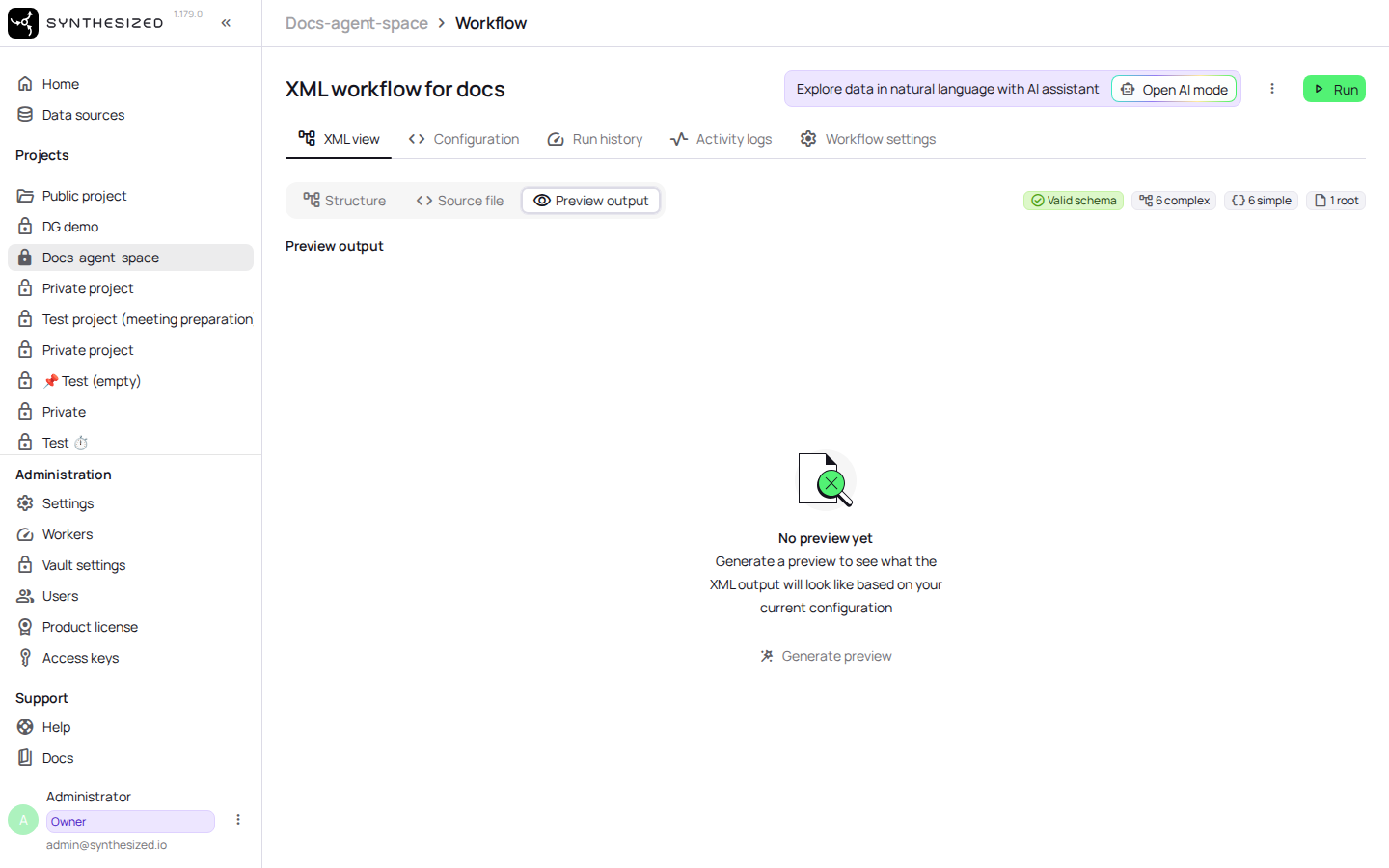
Click Generate Preview.
-
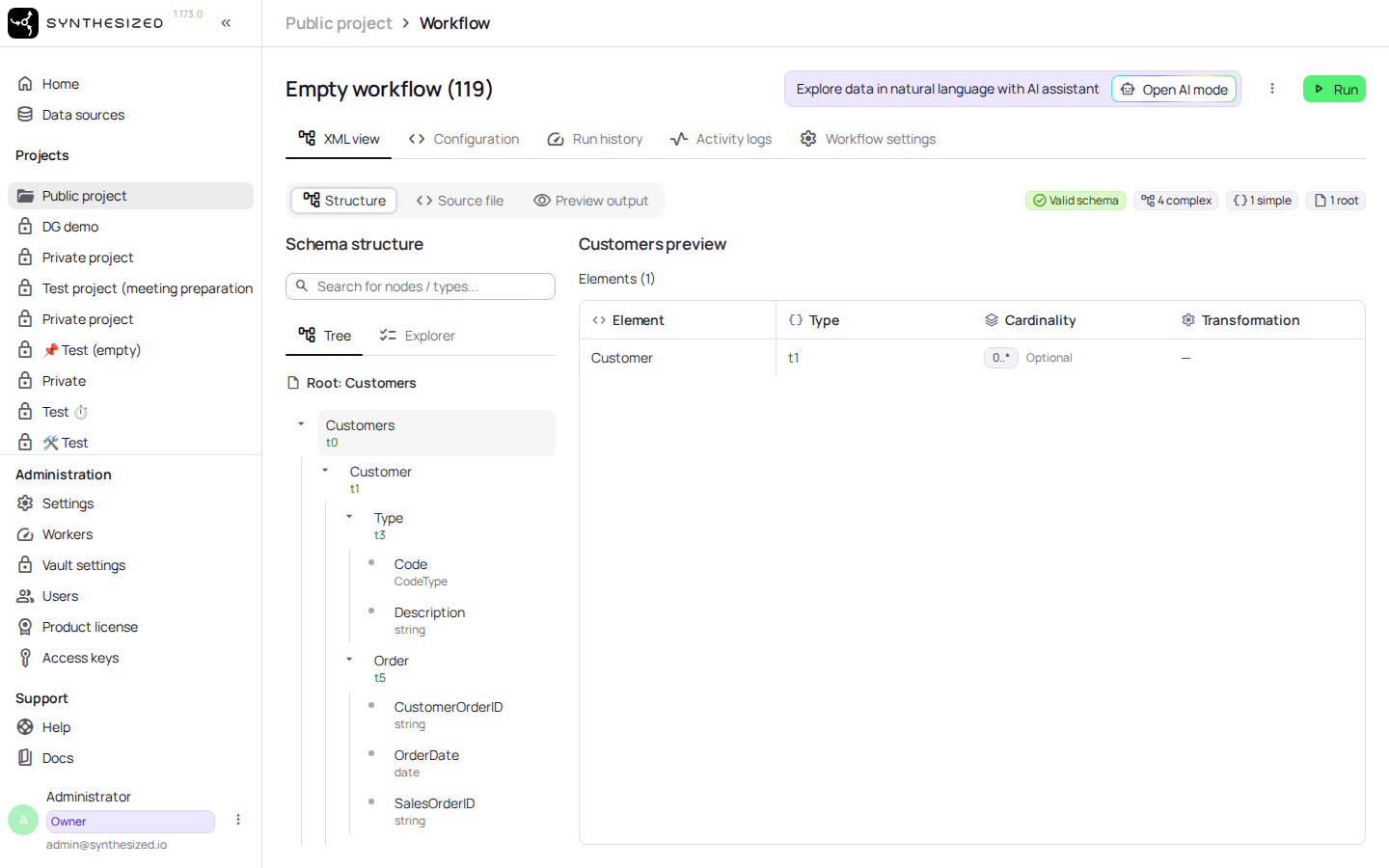
Open the schema view for the source.
-
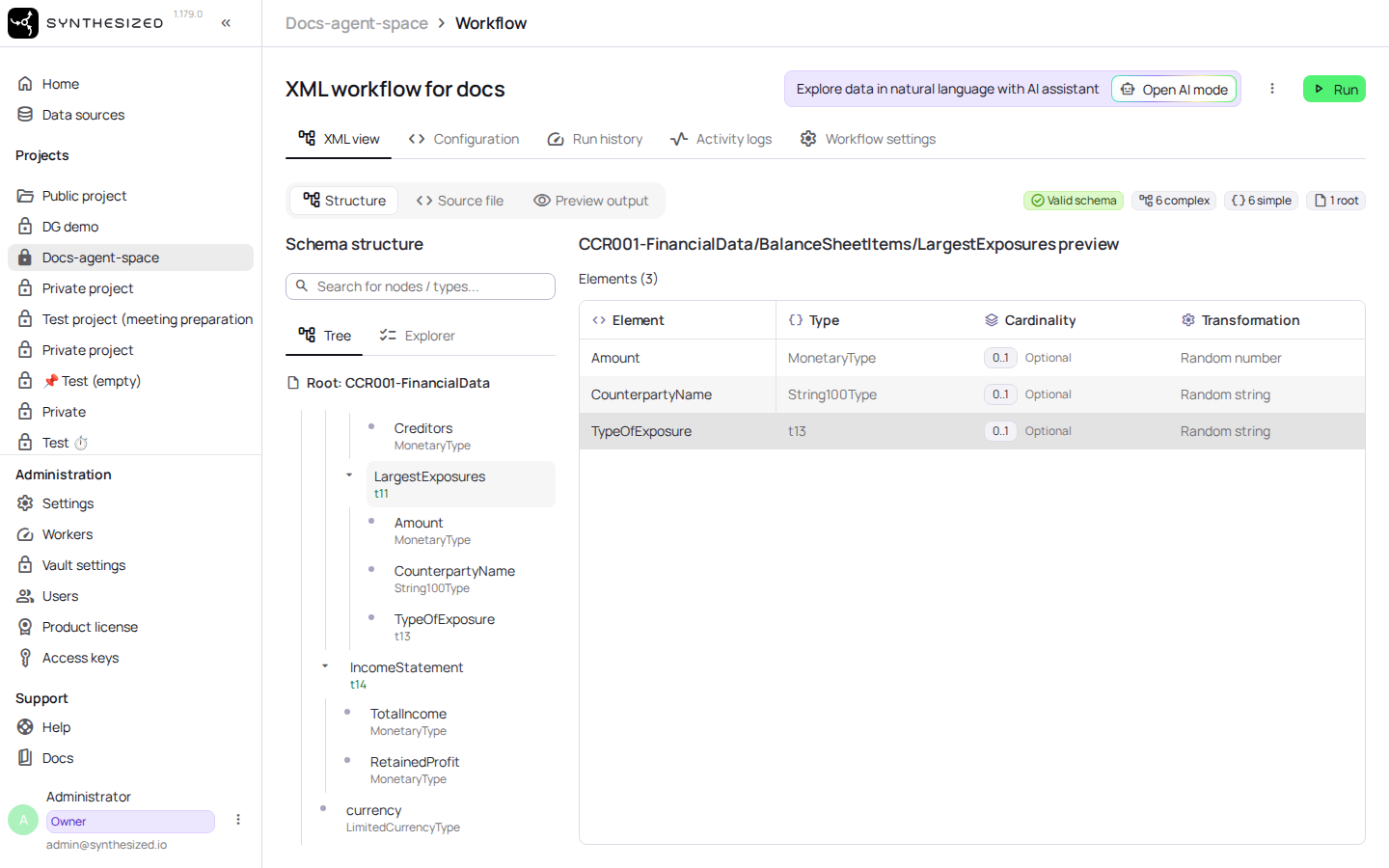
Expand the elements to see nested paths and attributes.
-
Note the path of the element or attribute you want to target.
-
Use that path in your YAML customization under
generation.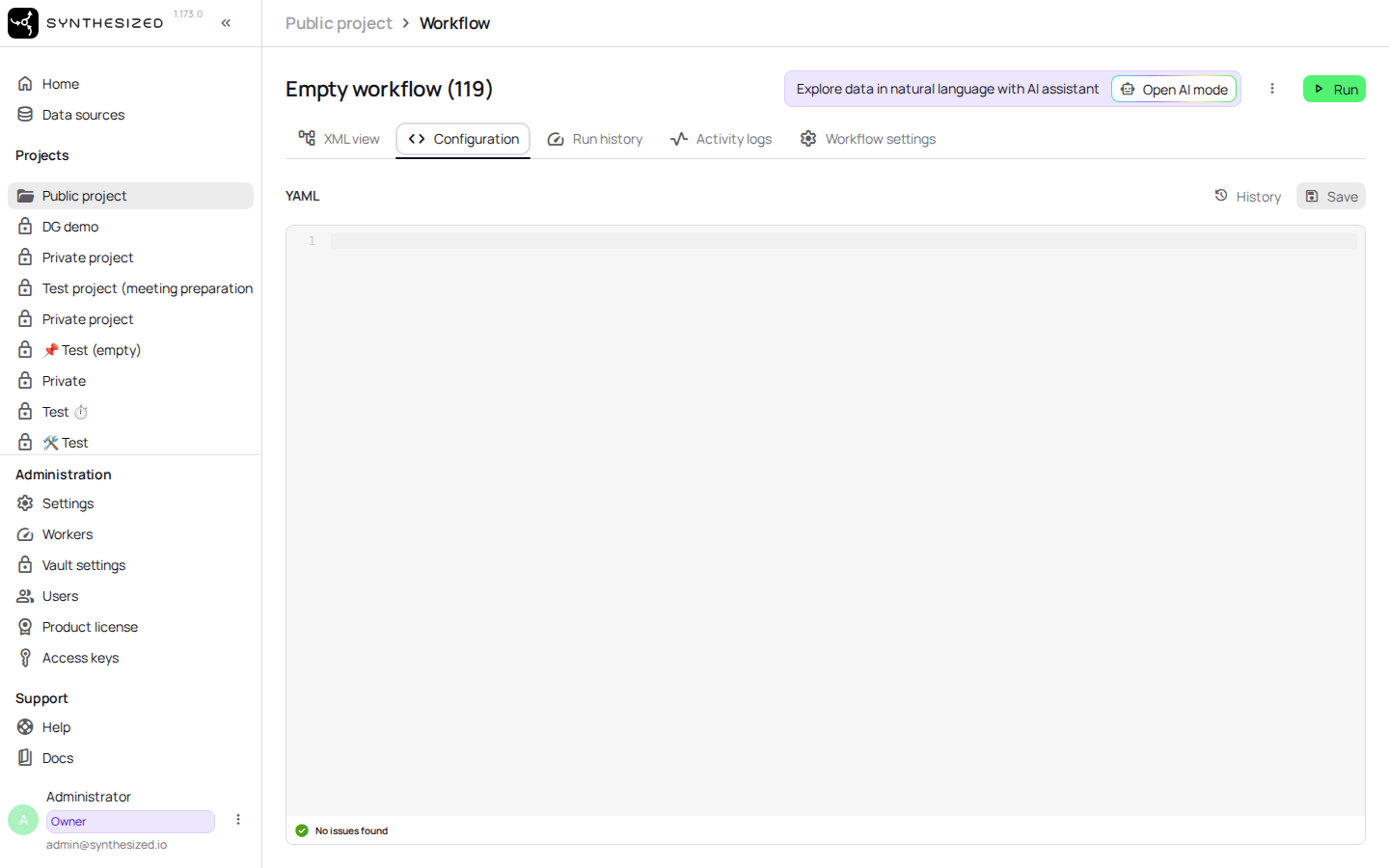
Example
Given a schema view showing a nested customer/address/city element, target it in your configuration like this:
generation:
  xml:
    - path: "customer/address/city"
      type: string
For attribute and text-content targeting syntax, see Generating XML Files.
Confirm Success
The schema view lists every element and attribute path present in the source file. If a path you expect is missing, check that the source file was parsed without errors.
Next Steps
-
Generating XML Files — write YAML customizations using the paths you found.
-
Configuration Reference — full list of generation options.
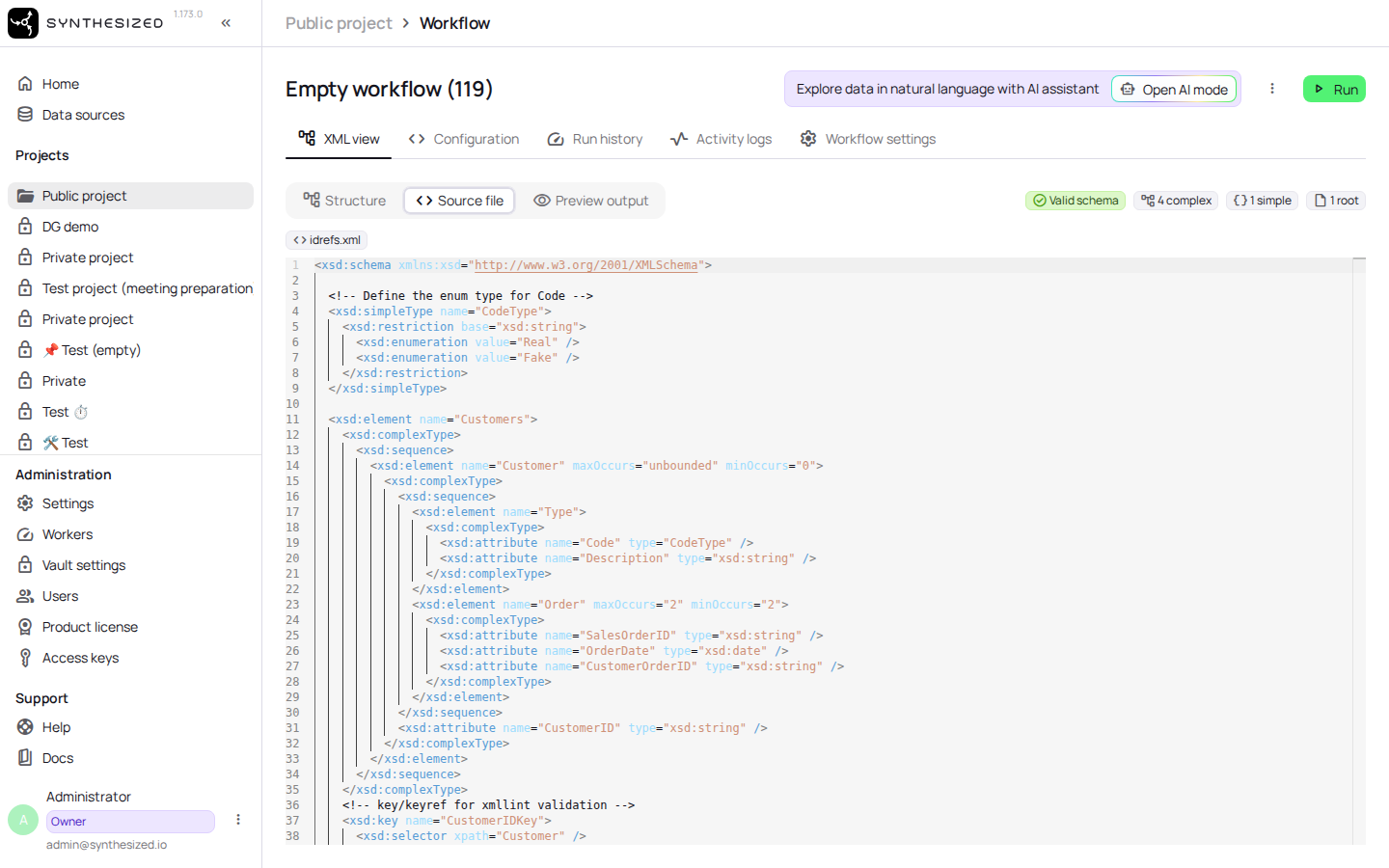
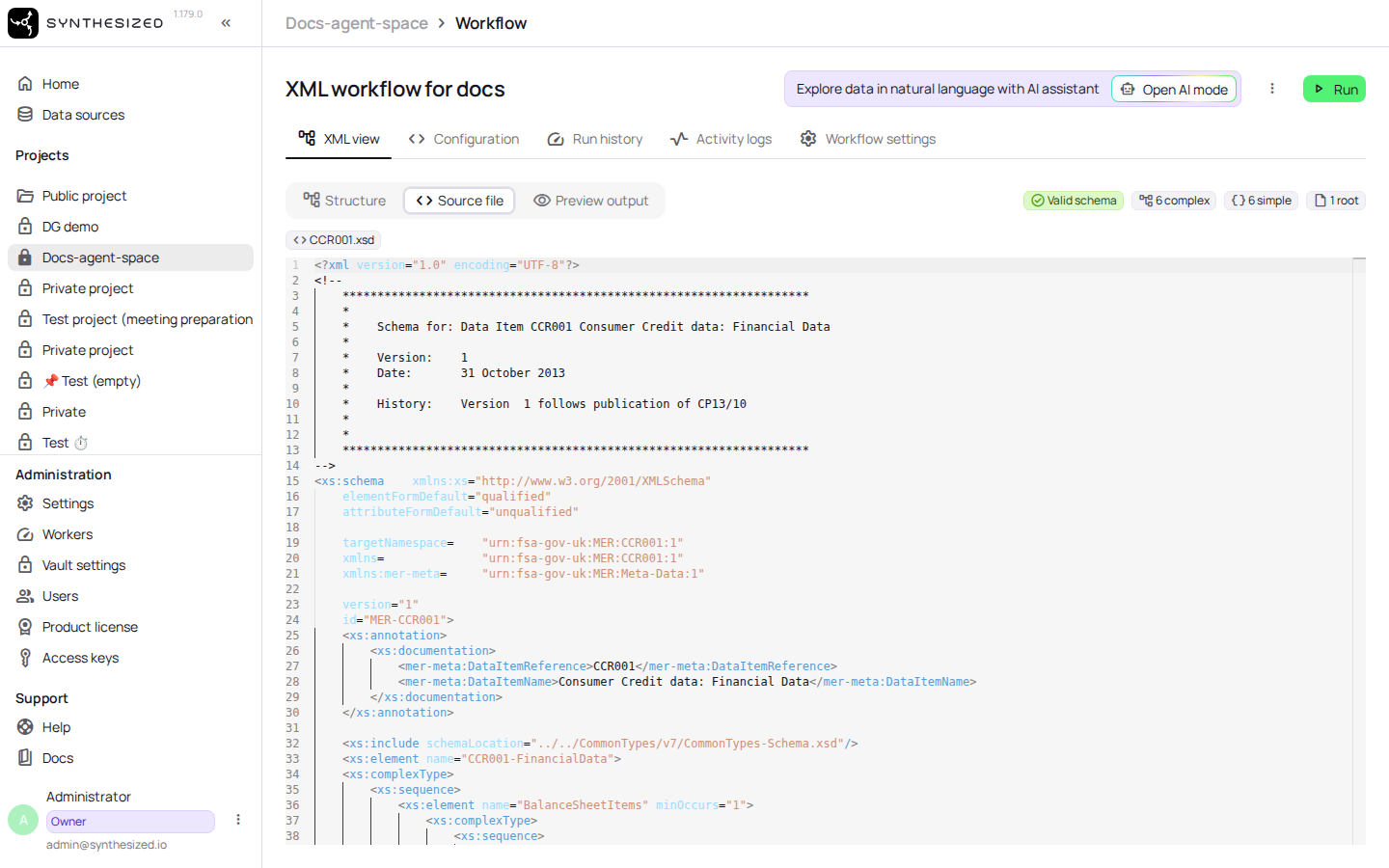
Inspecting the Raw XSD
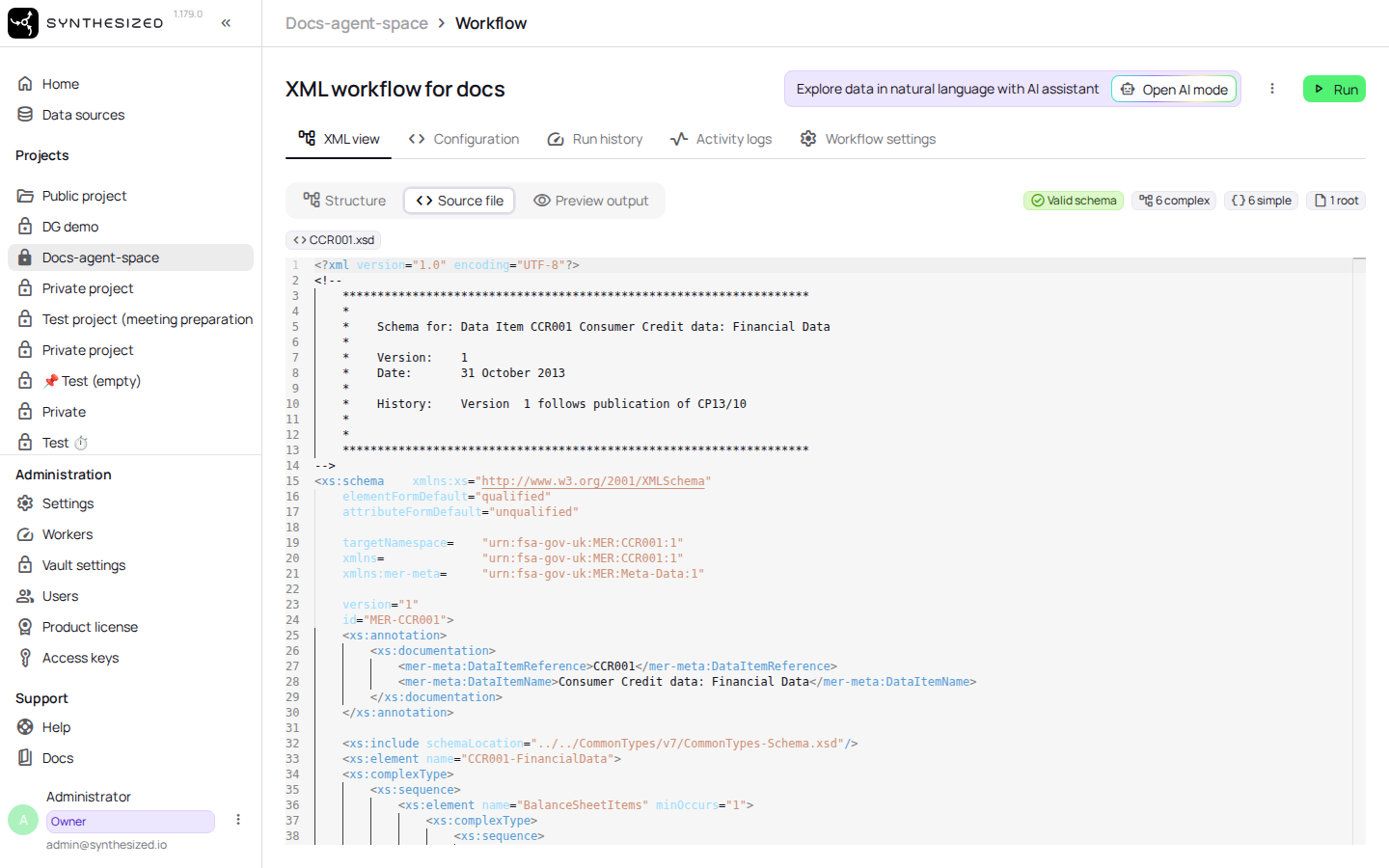
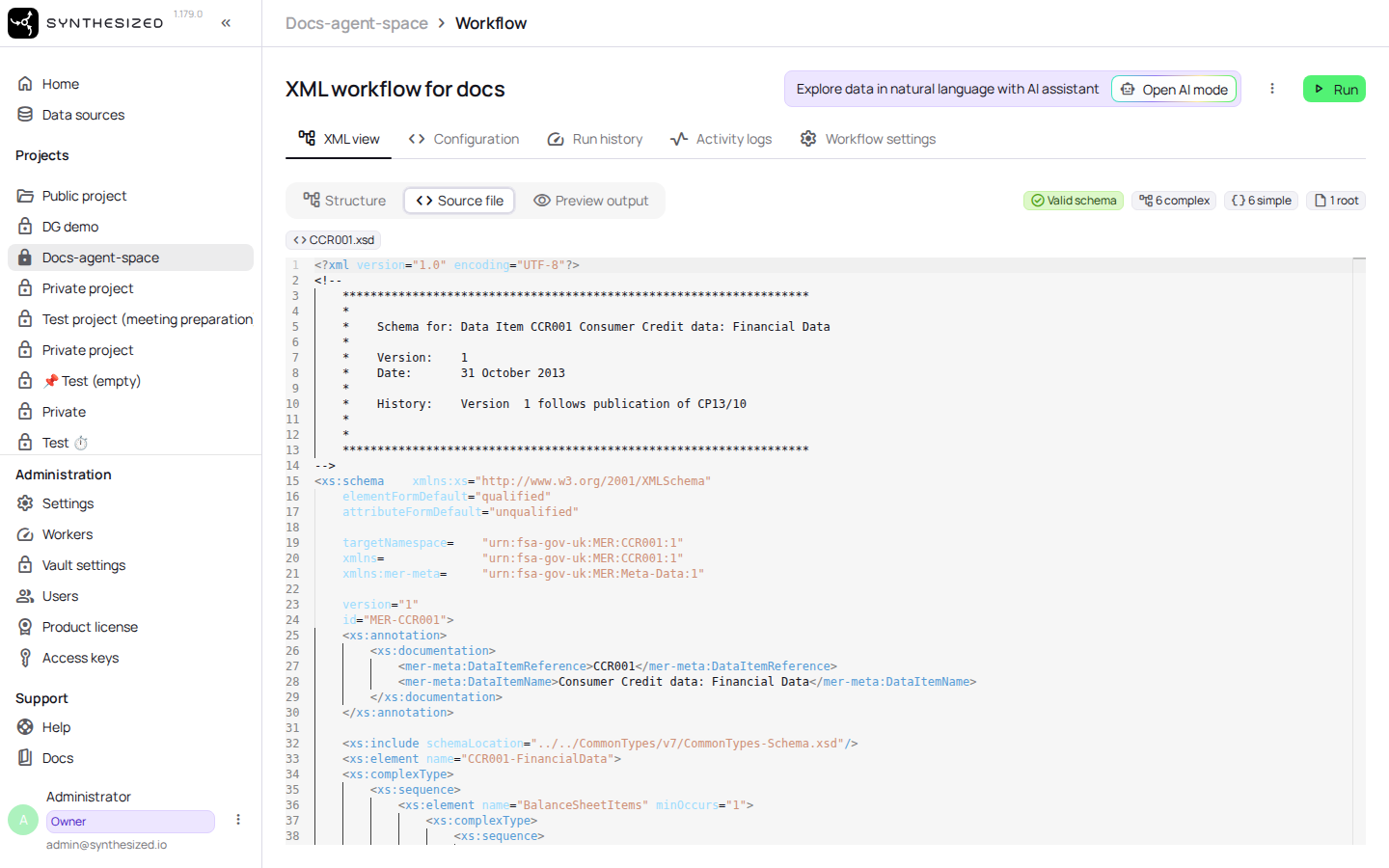
The XML view also lets you inspect the raw XSD behind the detected schema structure (see Viewing the XML Schema), without leaving the workflow - useful when a path in the schema view looks wrong and you want to check the source definition directly.