Diagnostic tool
The diagnostic tool collects a summary of a database’s structure, such as its schemas, tables, columns, keys, constraints and data types, without the data in it. Send the report to support when a schema doesn’t process as you expect: it shows the features of the schema that affect processing.
The tool supports SQL Server, Db2, PostgreSQL, Oracle and MySQL databases.
In Governor
-
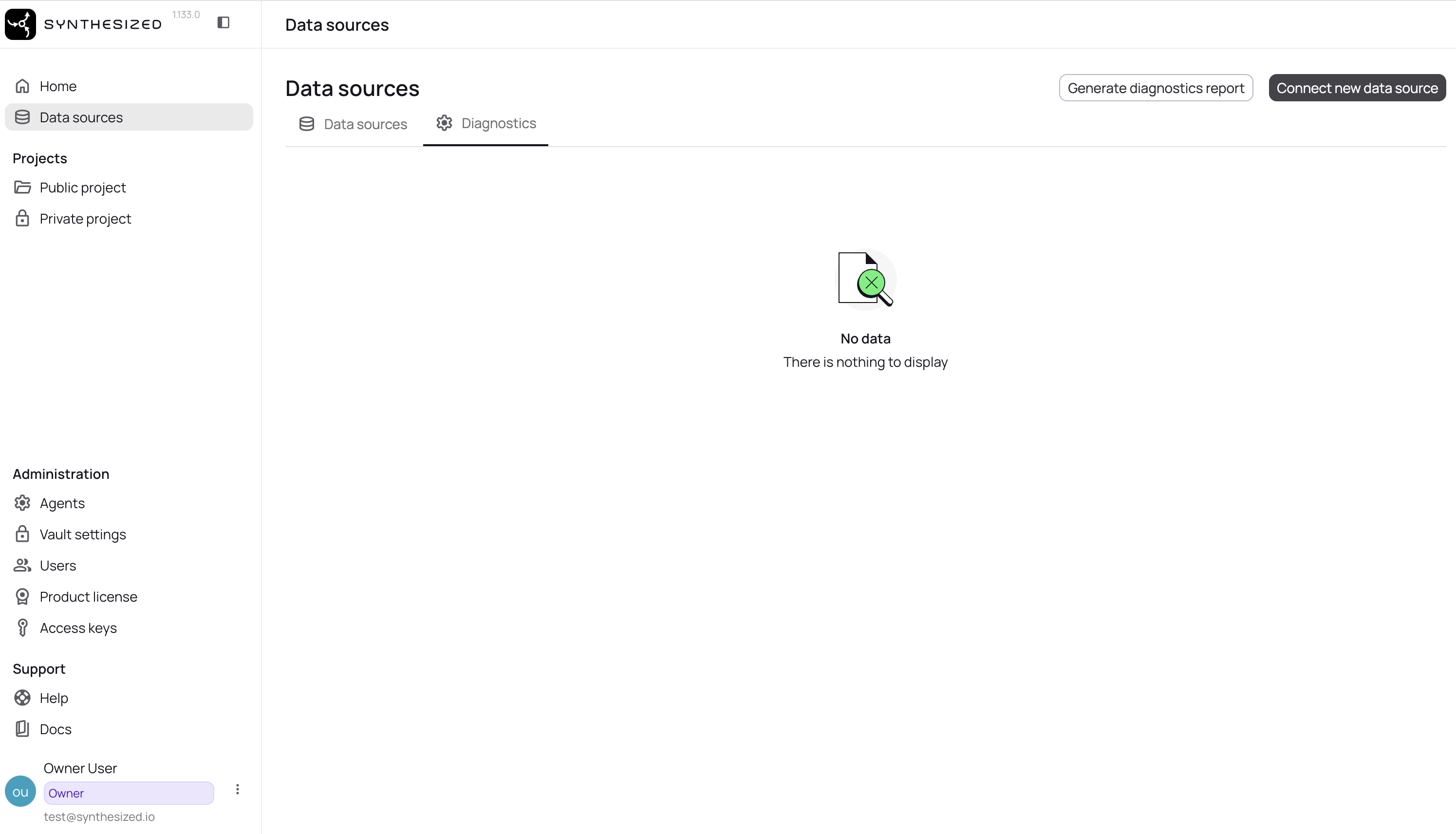
Open Data Sources, and click Generate diagnostics report in the top-right corner.
-
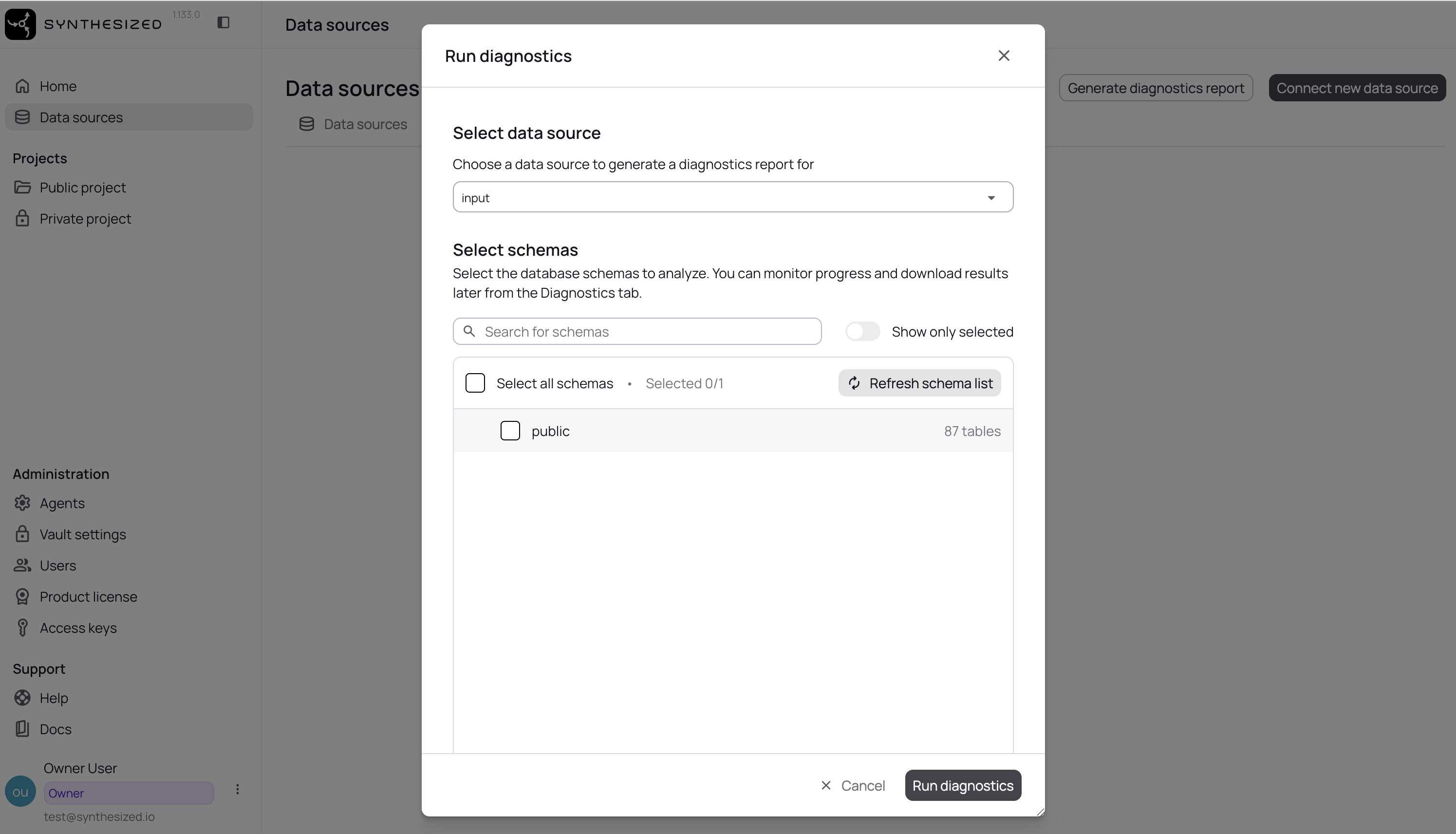
Select a data source, and the schemas to analyze.
-
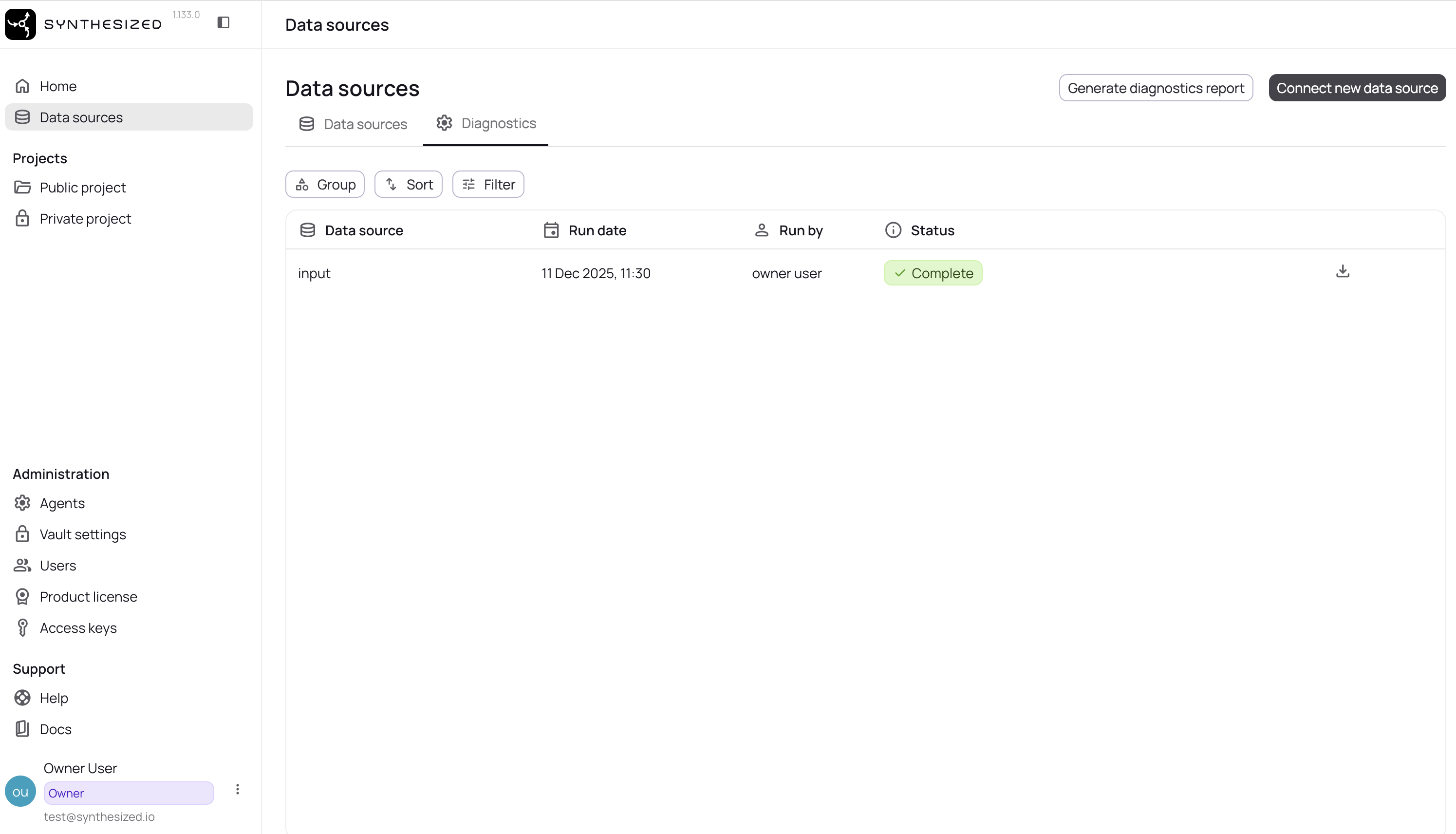
Click Run diagnostics. The report appears on the Diagnostics tab of the Data Sources page. When its status is Complete, download the CSV file.
With the CLI
The command-line tool introduces two commands for this purpose: diagnostic and list diagnostic.
Usage: tdk [-hV] [-c=<config-file>] [-i=<inventory-file>]
  [-ip=<input-password>] [-ips=<input-password-secret>]
  [-iu=<input-url>] [-iU=<input-username>]
  [-iUs=<input-username-secret>] [-op=<output-password>]
  [-ops=<output-password-secret>] [-ou=<output-url>]
  [-oU=<output-username>] [-oUs=<output-username-secret>]
  diagnostic [-r=<reports>] [-f=<output-csv-file>] [-exc]
Commands:
  lists, ls     List of supported reports for the current database
The example below illustrates how to collect all the summaries into a single CSV file.
tdk \
    --input-url 'jdbc:sqlserver://localhost:1433;encrypt=false;databaseName=test' --input-username test --input-password test \
    --output-url 'jdbc:sqlserver://localhost:1434;encrypt=false;databaseName=test' --output-username test --output-password test \
    diagnostic --file ./diagnostic_summary.csv
You can specify a specific list of required reports by using the flag -r or --reports.
The list of supported reports can be gathered by the following command:
tdk \
    --input-url 'jdbc:sqlserver://localhost:1433;encrypt=false;databaseName=test' --input-username test --input-password test \
    --output-url 'jdbc:sqlserver://localhost:1434;encrypt=false;databaseName=test' --output-username test --output-password test \
    diagnostic lists

> Reports [Id, Description]:
    check_constraints               List of check constraints
    columns_data_type               Columns data type
    columns_data_types_basic        ColumnsDataTypesBasic
    columns                         Columns list
    constraints                     Constraints list
    cyclic_table_references         List of table references with cyclic
    databases                       Databases list
    find_related_tables             List of related tables
    foreign_keys                    List of foreign keys
    indexes                         List of indexes
    indexes_space_stat              List of indexes space statistics
    rules                           List of rules
    same_columns_in_multiple_fks    Same columns in multiple fks
    schemas                         List of schemas
    schemas_relations               List of schemas relations
    table_data_types                List of table data types
    tables                          List of tables
    triggers                        List of triggers
    user_defined_data_types         List of user defined data types
    user_permissions                List of user permissions
    hardware                        This report contains hardware statistics of executing machine
The diagnostic package also has database-specific collectors that need to be activated manually.
For example, the XML pointers collector can be enabled using the -exc or --enable-xml-collector flag.